Products within BMS provides a list or database of many products and their details, which is selected when creating an Asset. The products list is not your Stock on Hand list. Products can be added manually or imported in bulk.
BUILT PRODUCTS:
The Built product is basically a 'template' for the machine and is normally used as the Product for all Assets, so whenever we look for Supplies or Components for the Asset, it looks at the product relationships on it's Built product. Likewise the Asset knows if it has Black/Colour meters based on the meter configuration on this Built product.
The Built product is also what you add to a Sales Order, as it has the function to configure a Bill of Materials (where you can select from the Simple products that are related Components and Supplies for that Built Product).
SIMPLE PRODUCTS:
The base unit is a Simple product and has a Component relationship of type 'Base' with the Built product. The simple product is what you add to all Purchase Orders with the supplier, so you should be using the Suppliers product code. Otherwise this needs to be manually updated on each purchase order you do.
The simple product is serialized and when you receipt it from the Supplier, the serial number is entered as part of the receipt and tracked as an individual stock holding. This stock holding is then moves out of stock when that simple product is included on a sales order (as the Base component in the Bill of Materials for the Built product). The serial is selected when the dispatch for that Sales Order is allocated.
This Serial Number is also used as the serial on the Asset.
Note: Toners, consumables, photoconductors etc are entered as Simple Products in BMS.
Products can also be imported in bulk, by following these instructions: How to import Products into in BMS

If you have an active Monthly Products DB Update Subscription with Innovative Solutions, escalate the request of adding specific Products, to Support.
Prerequisites: To create a Product, the following is required:
1) Products Brands should be created: Follow How to add Product Brands to BMS
How to create a Product in BMS:
Step 1: Create the Product:
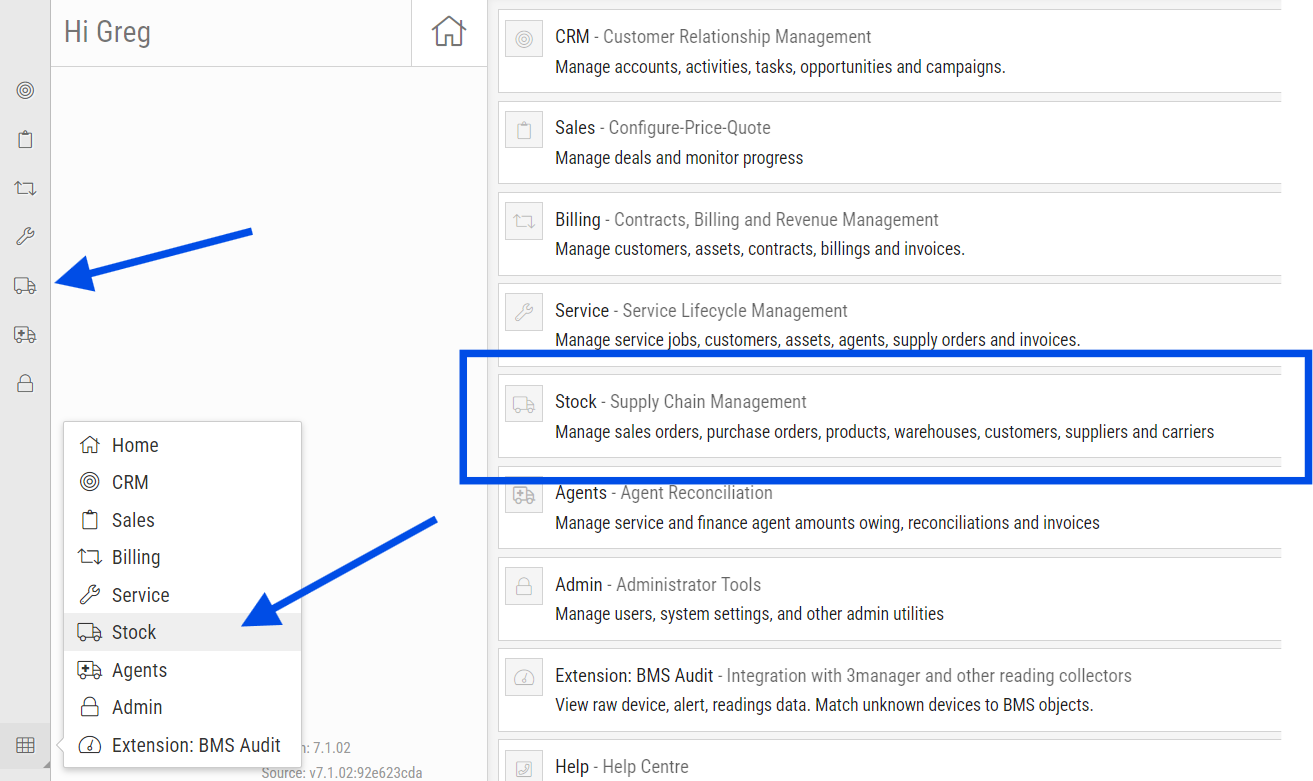
- From the BMS Homepage, access the Stock Application.
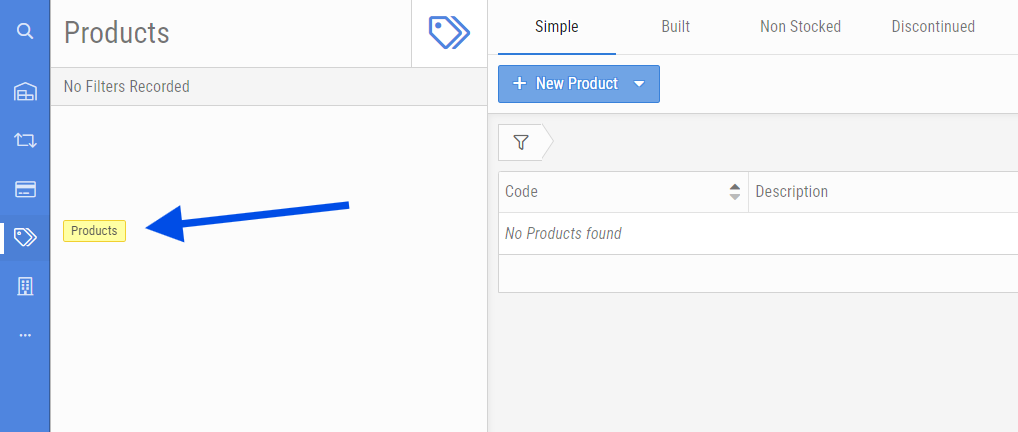
- Select the Products menu:
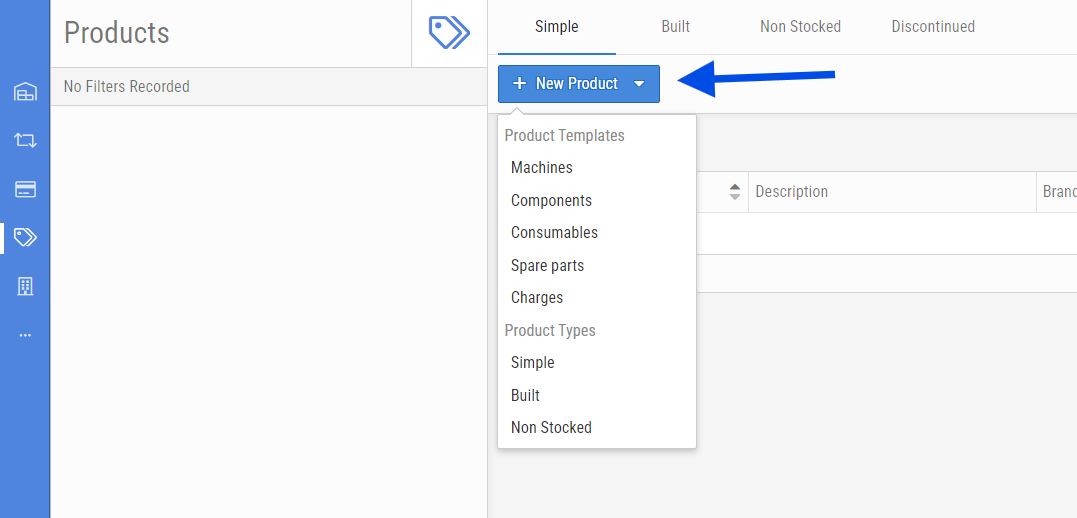
- Click on + New Product and select the Product Type you would like to create. In this example, we will select Simple:
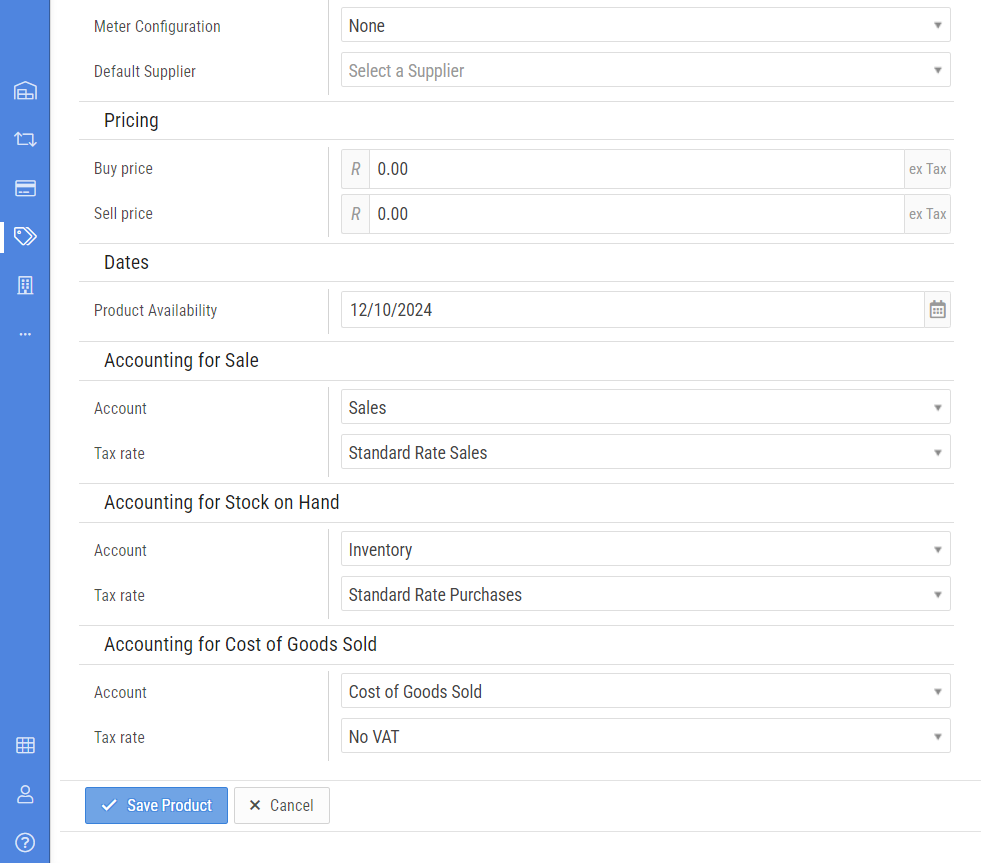
- Enter in all the relevant details for the Product:
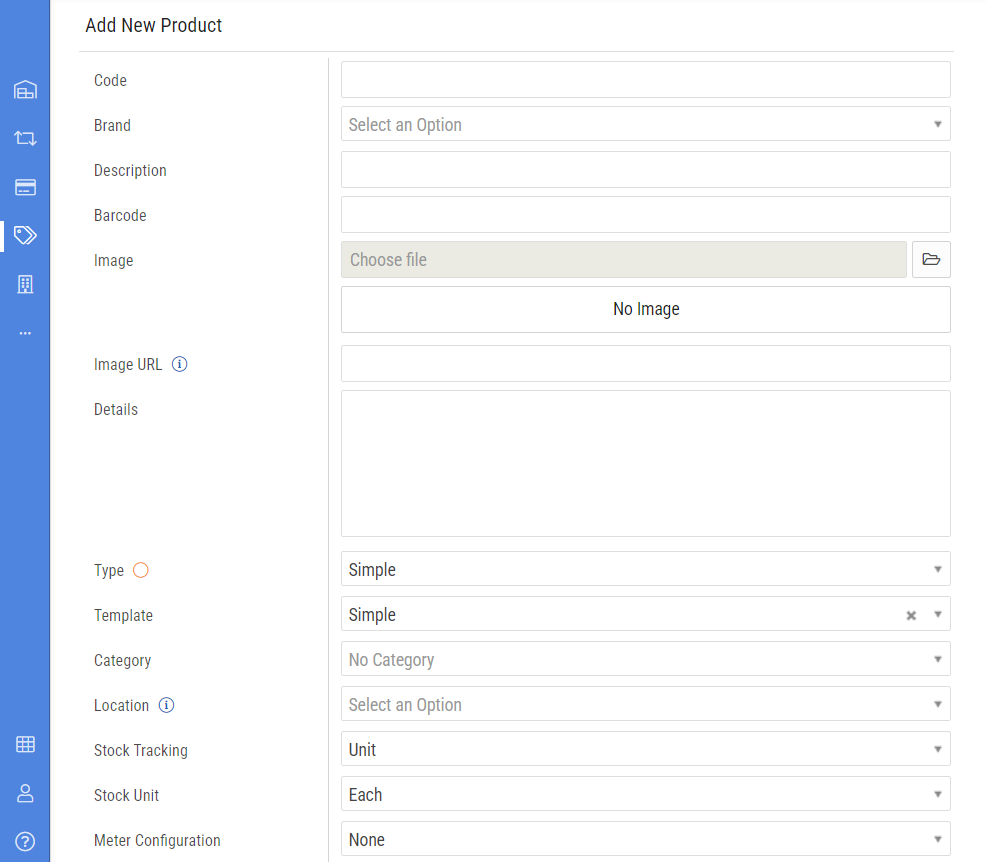
- Code: This is the product’s Part Number, SKU, product code etc
- Brand: This is the product’s brand/manufacture. If the required Brand does not appear in the list, please see: How to add Product Brands to BMS
- Description: This is the products description. This is used elsewhere in BMS where this product is shown (Purchase Orders, Sale Orders, Service Jobs etc).
Note: Because of this, we recommend using a standard and clean format. A recommend format is:
FORMAT- *Consumable* - *Manufacture* *Printer Series* - *Colour/item* *(yield)*
EXAMPLE- “Toner - Lexmark C2240/XC2235 Series BSD - Magenta (6k)”
- Barcode: Barcode information if available
- Image: Upload an image of the product
- Image URL: Enter the URL of an image to use as the product image, or 'remove' to remove the image
- Details: Additional details on the product, this can be more specific information that isn’t relevant to the product description
- Type: Simple
- Template: Simple
- Category: Select the category, “Toner” for toners, “OPC” for Drums etc. If the required Category does not appear in the list, please see: How to add Product Categories to BMS
- Location: Select the relevant location
- Stock Tracking: Unit (generally we aren’t concerned about serial numbers for consumable items)
- Stock Unit: Each
- Meter Configuration: Select the meter type (I.E: Colour, Mono, A3 Colour, A3 mono etc. Not required for consumable products)
- Default Supplier: The default supplier for the product. If the required Supplier does not appear in the list, please see: How to add Suppliers to BMS.
- Buy Price: What price you buy this product for
- Sell Price: What price you sell this product for
- Product Availability: When is the product available from
- Accounting: Account information for the product
- Click Save Product.

support@innovativesolutions.co.za
+27 61 542 7262
Was this article helpful?
That’s Great!
Thank you for your feedback
Sorry! We couldn't be helpful
Thank you for your feedback
Feedback sent
We appreciate your effort and will try to fix the article