The 3manager integration into BMS enables seamless device auditing and fleet management by automatically syncing data from connected devices into BMS. This allows for real-time visibility, proactive support, and streamlined billing—all within a unified platform.
Prerequisites: For devices to integrate into BMS from 3manager, the following is required:

1) A Customer and ideally the Sites and Contact Persons: Follow How to create a Customer on BMS
2) Products must be created: Follow How to create a Product in BMS
3) Assets must be created under customers: Follow How to create an Asset in BMS
How to integrate 3manager with BMS
Step 1: Enable the 3manager integration with BMS:
- Within BMS, update the following settings under Admin > General Settings:
- tm_root_url: https://innovative-solutions.3manager.com
- tm_customer_iframe_url: dashboards/general
- supply_alert_document: job
Step 2: Configure 3manager Webhook settings:
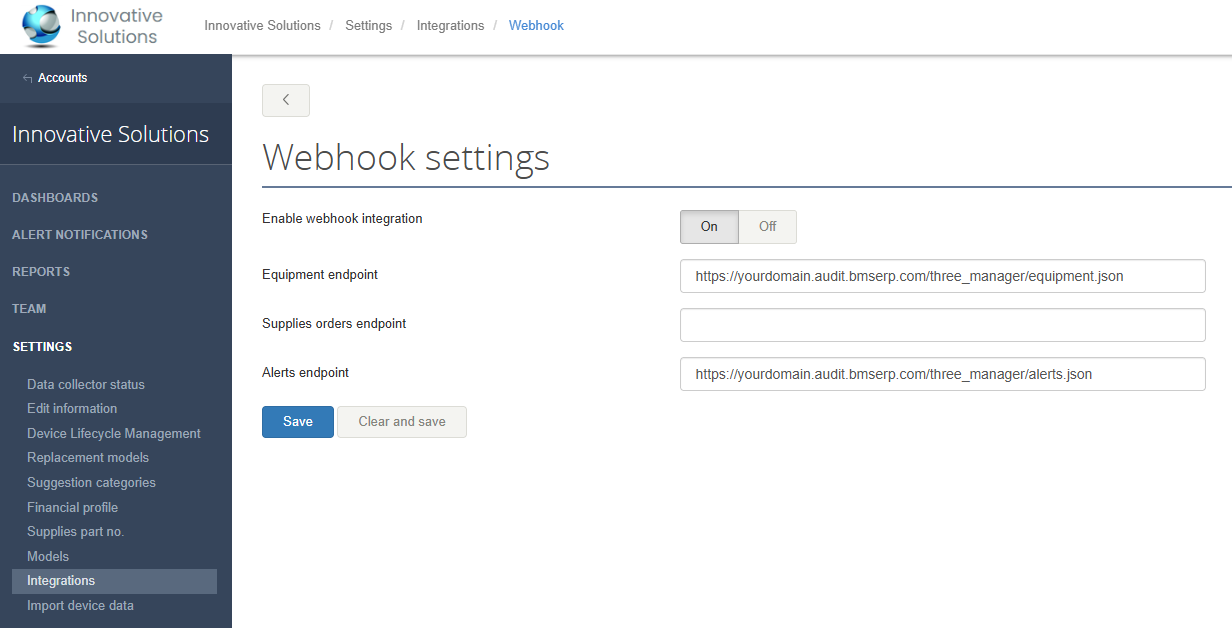
Within 3manager, go to the Vendor's top level Settings > Integrations > Webhook > Configure
Enable, then configure the following webhooks (replace the your domain details):
- Equipment endpoint: https://yourdomain.audit.bmserp.com/three_manager/equipment.json
- Alerts endpoint: https://yourdomain.audit.bmserp.com/three_manager/alerts.json
Click Save
Step 3: Configure 3manager Equipment Report:
- On the Vendor's top level Reports > Equipment data / meter readings, add a new Report
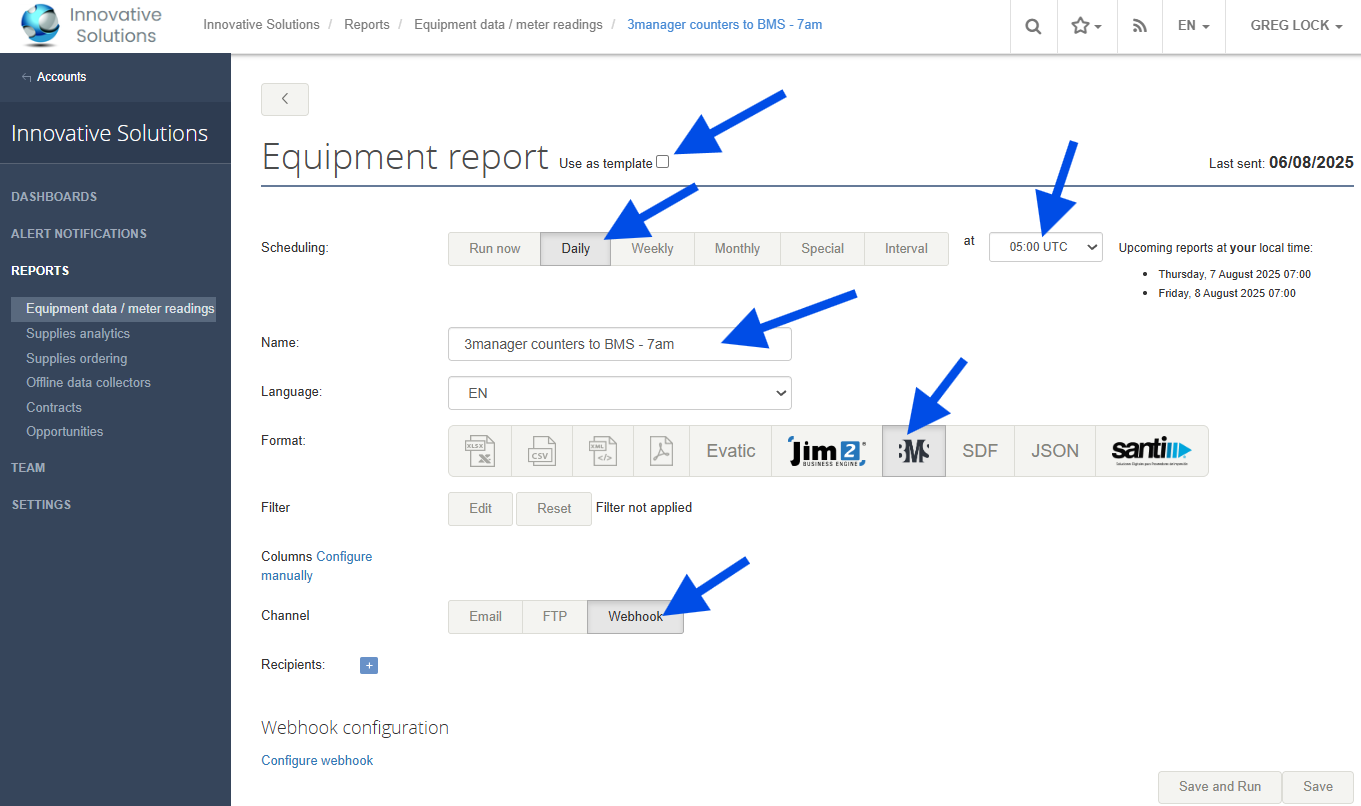
- Under the Create new equipment report, specify the following options:
- Scheduling: Daily at 05:00 UTC
- Name: 3manager counters to BMS - 7am
- Format: BMS
- Channel: Webhook (uncheck the Email and FTP options if they are selected)
- Tick the Use as template checkbox
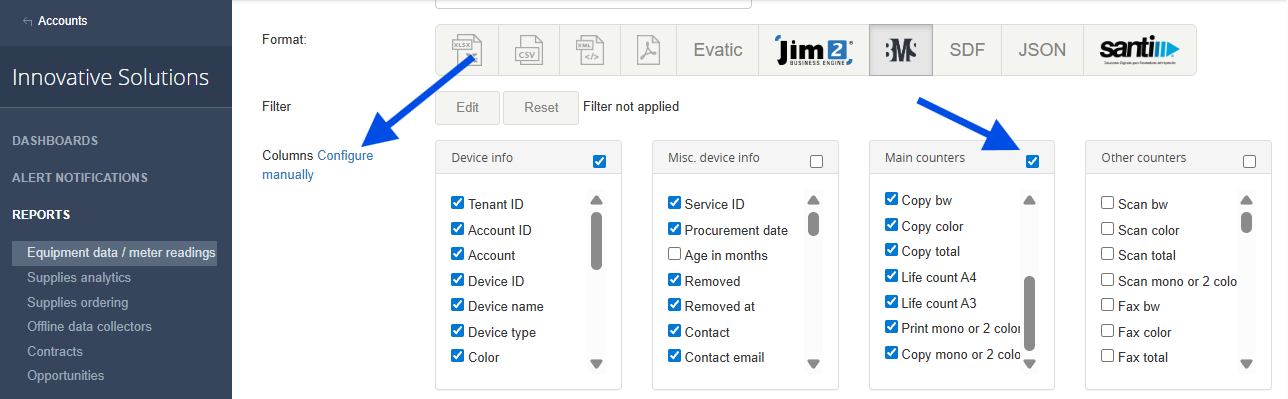
- Next to Columns, click on Configure manually
- Tick the select all checkbox in the Main counters column
- Click Save and Run
Clicking Save and Run will save the equipment report details, but then immediately runs it as well. Once configured, 3manager will prepare an equipment report, then post it via the specified webhook to the BMS Audit Service.
As the BMS Audit Service processes the equipment report, it will query BMS for matching assets, if not found, the asset is listed in BMS Audit as an Unknown Device. Periodically they can then choose to flag the device to be ignored, or re-query BMS for a match.
Matched assets will pass counters directly through to BMS.
Step 3b: Creating an additional Equipment Report:
- On the Vendor's top level Reports > Equipment data / meter readings, click on From Template and select the saved template: 3manager counters to BMS - 7am
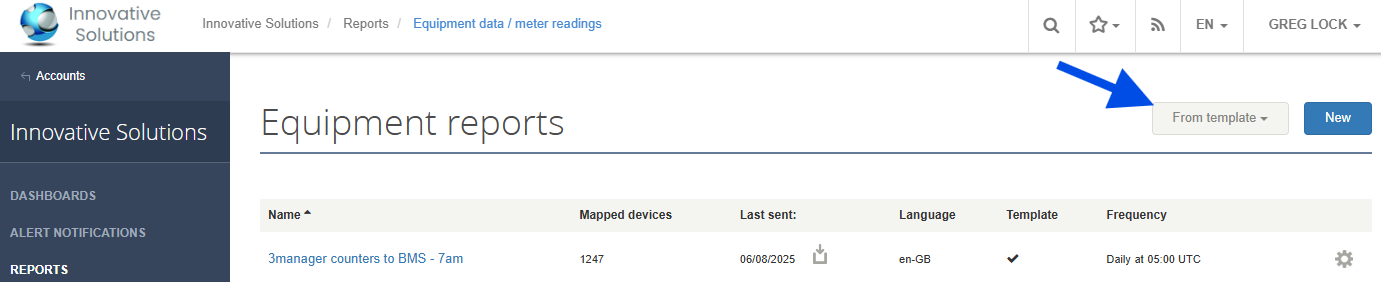
- Change Scheduling to Daily at 16:00 UTC
- Update Name to 3manager counters to BMS - 6pm
- Click Save
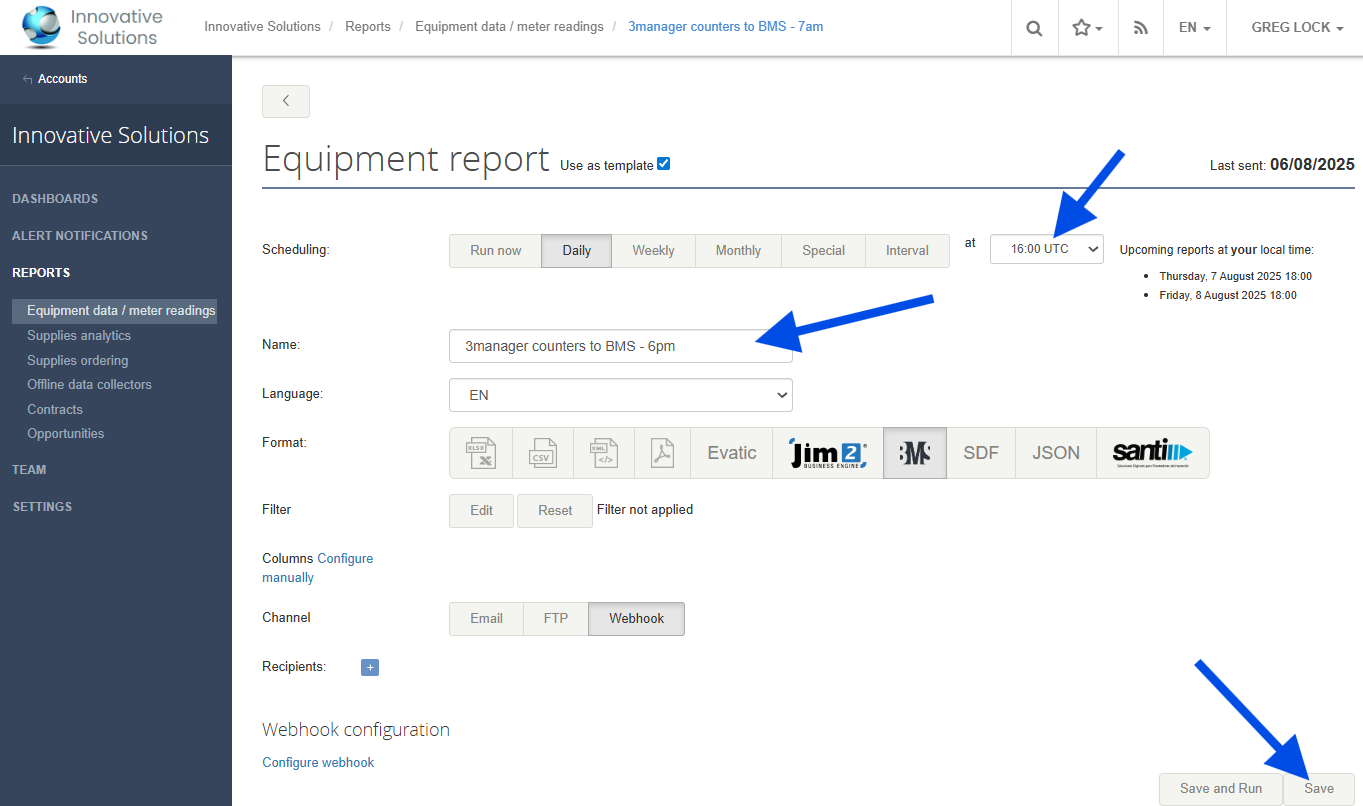
This configuration will send updated information from 3manager to BMS twice a day.
Step 4: Configure 3manager Alerts:
- On the Vendor's top level Alert Notifications, click on New
- Under the Alert Profile, specify the following options:
- Name: Alerts to BMS
- Toggle the to Webhook to on
- Under Select alert to add, select the relevant alerts, one by one, to be sent to BMS. The following list is our recommendation:
- Other supplies lower than: 20% or 5 days, ignore more than 5 days
- Toner lower than: 20% or 5 days, ignore more than 5 days
- Critical error - Field service needed
- Warning - Field service needed
- Manual tickets (QR)
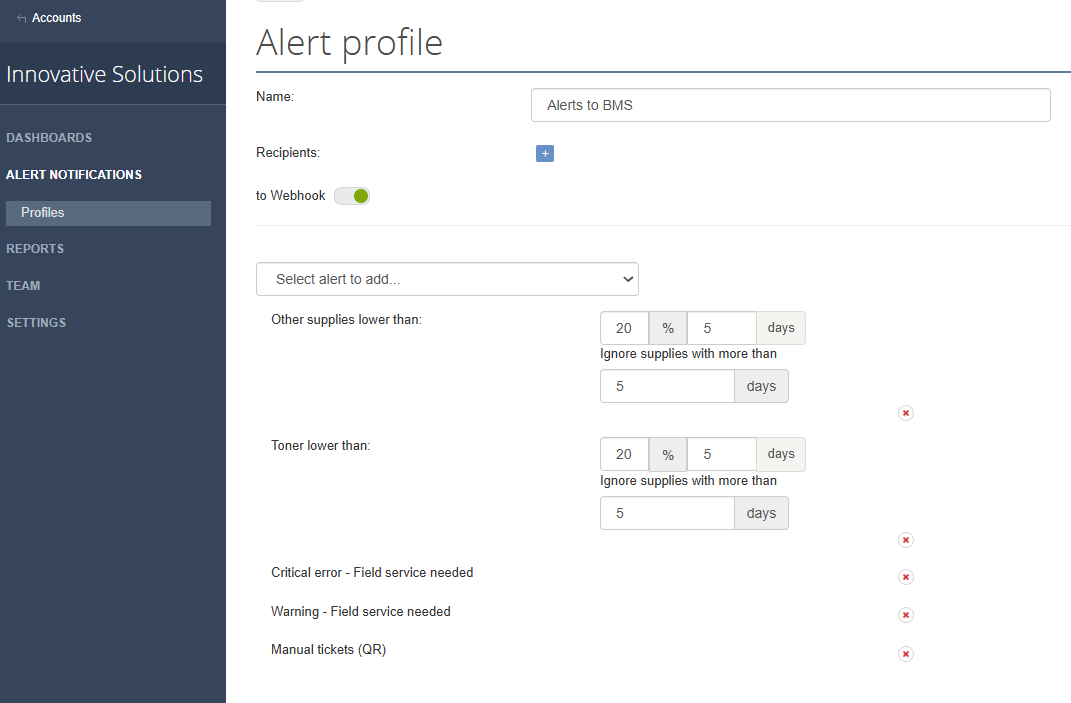
- Click Save
- Select Auto map (inactive). A Filter page will popup, no settings need to be changed, click on Filter.
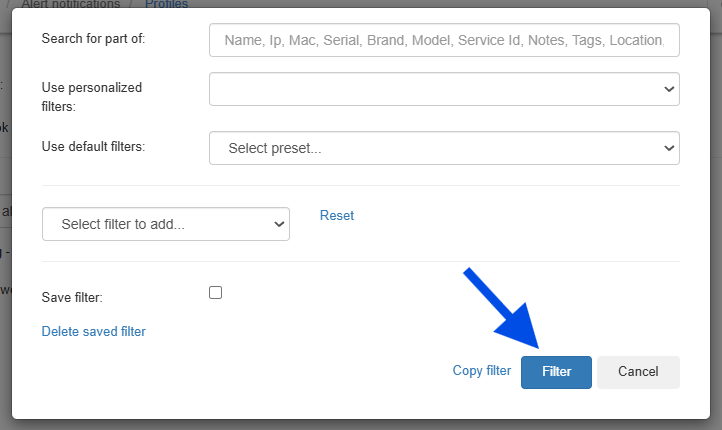
- Auto map should now be showing (active).
- Click Save
- Click Enable > Yes on the confirmation message
Step 5: Confirm BMS Audit Information:
- From the BMS Homepage, navigate to the BMS Audit Module (Extension: BMS Audit) and Login

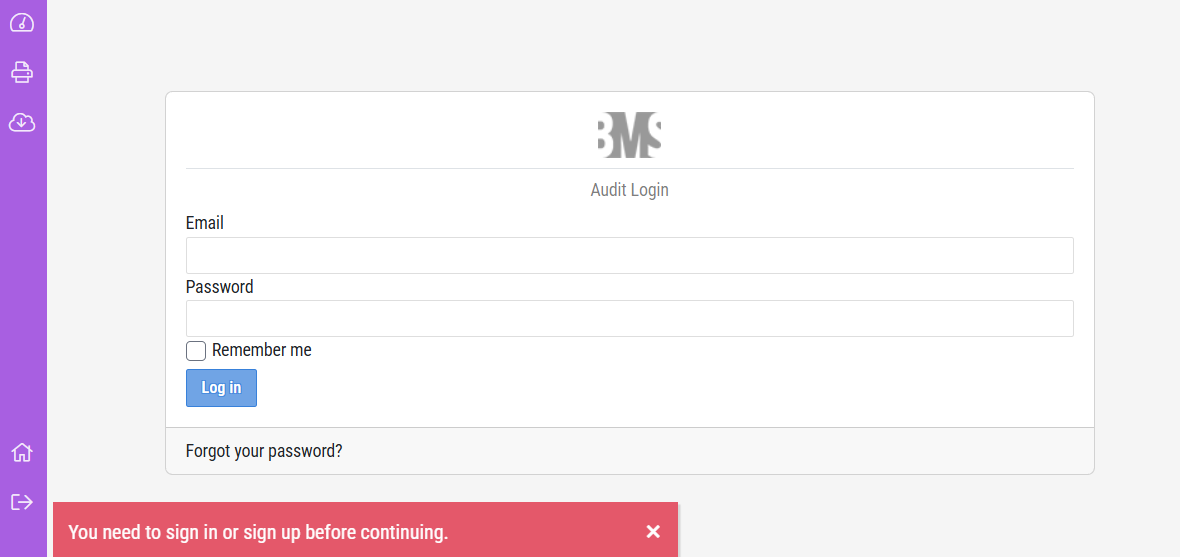
- If you are unable to login:
- Ensure that you are a Registered Audit user by selecting Register Audit user under BMS Admin > Users, edit your account. When a user is newly registered, a confirmation popup will appear with the password to be used for this user's BMS Audit access.
- Otherwise, if the password is unknown, from the BMS Audit Portal, follow the Forgot your password? process to reset your password.
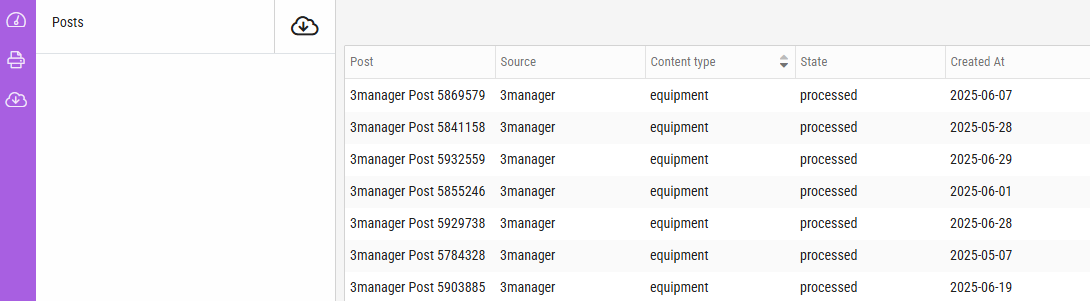
- Once logged in, under the the Posts section, you should notice some lines of 3manager Posts listed, if so, this is an indication that the integration from 3manager is communicating. If not, please confirm your configurations from Step 2 onwards?
Step 6: Test Integration:
- Log into 3manager and navigate to any device under the Equipment section under any account listed under the vendor's top level.
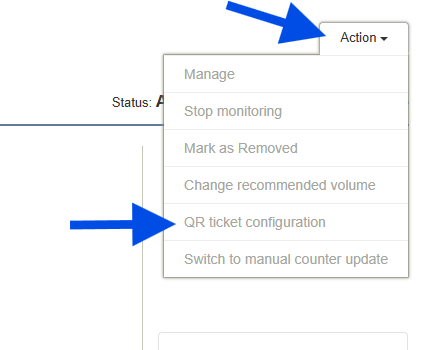
- Select the device and enable the QR ticket configuration
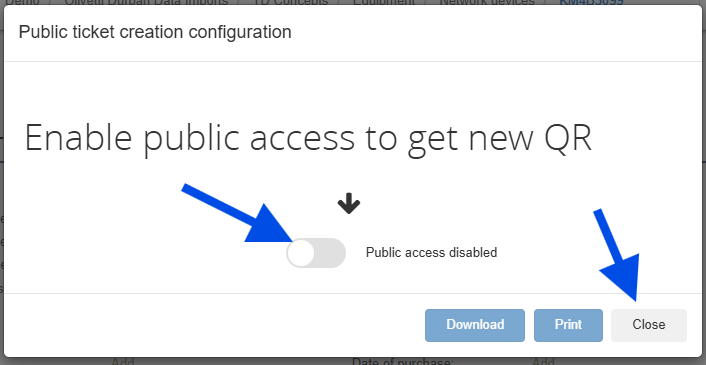
- Switch the Public access disabled toggle and click Close.
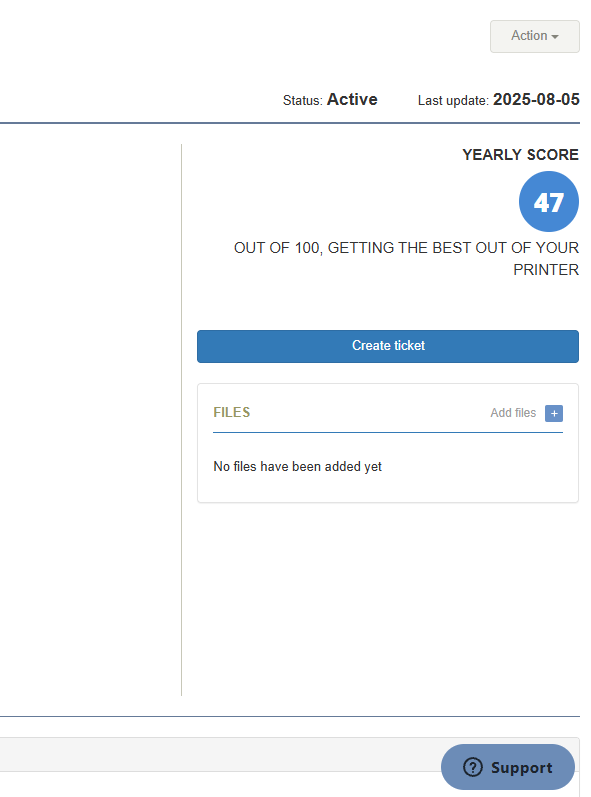
- Refresh the page, then click on the Create ticket button and follow the process to log a ticket
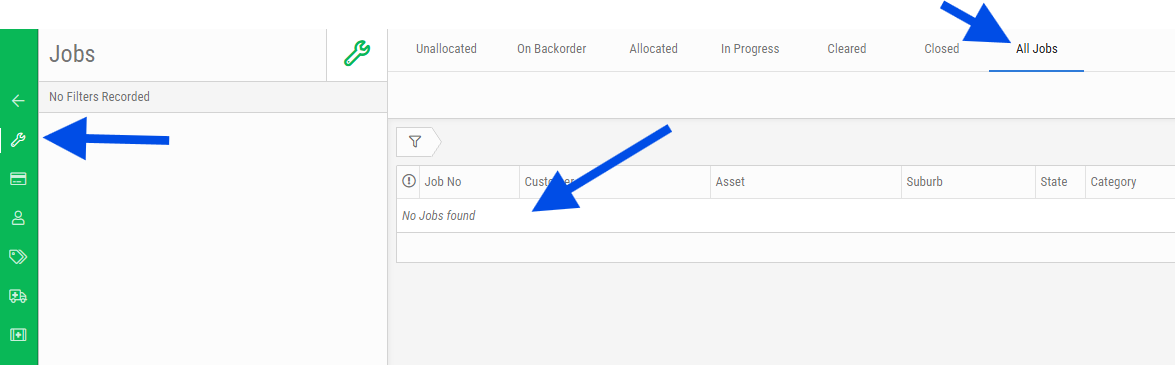
- After a few minutes, check if the Job has been raised automatically under the BMS Service Job section. If not, search the Innovative Solutions Knowledge Base for Solutions, such as: Device not linking from 3manager into BMS

support@innovativesolutions.co.za
+27 61 542 7262
Was this article helpful?
That’s Great!
Thank you for your feedback
Sorry! We couldn't be helpful
Thank you for your feedback
Feedback sent
We appreciate your effort and will try to fix the article