Assets refer to equipment that is allocated to a customer. The assets view gives you a breakdown of all the details of the equipment such as manufacturer, model, serial number, site, contact persons etc. Service Jobs are raised against an asset which allows for tracking of all job raised per asset, all the way through to the profitability of each asset.
Assets can be created in either the Sales, Billing and Service Apps.

Assets can also be imported in bulk, by following these instructions: How to Import Assets into BMS
Prerequisites: To create an asset, the following is required:

1) A Customer and ideally the Sites and Contact Persons: Follow How to create a Customer on BMS
2) Products must be created: Follow How to create a Product in BMS
How to create an Asset in BMS:
- Step 1: Creating the Asset
- Step 2: Add Components to the Asset
Step 1: Creating the Asset:
- Within either the Sales, Billing or Service Apps, select Customers, search for and select the specific Customer.
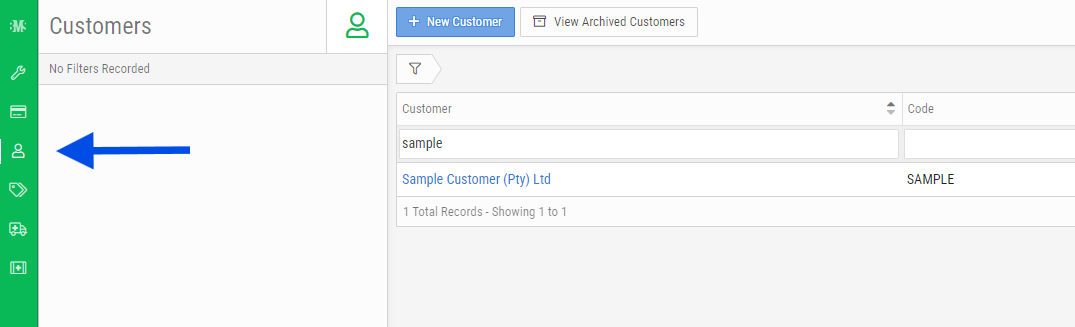
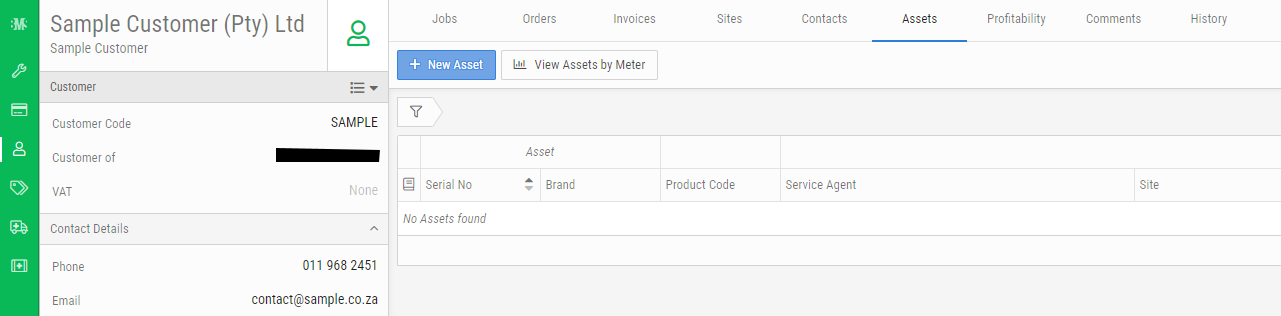
- Select the Assets Tab under the new Customer record and click 'New Asset':
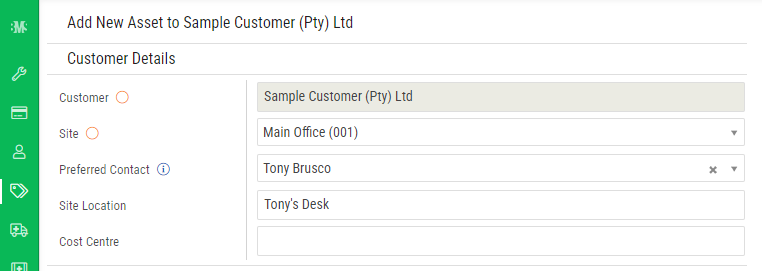
- Enter in the Customer specific details, selecting the Site and Preferred Contact. Site Location refers to details of where the asset is located at the site, eg. Reception, or on Tony's desk:
- Under Asset Details, enter in the exact serial number. (We recommend the use of a barcode scanner for ultimate accuracy)
- The Product Code list (Build, Simple, All Products etc) is referencing the Products loaded into BMS.
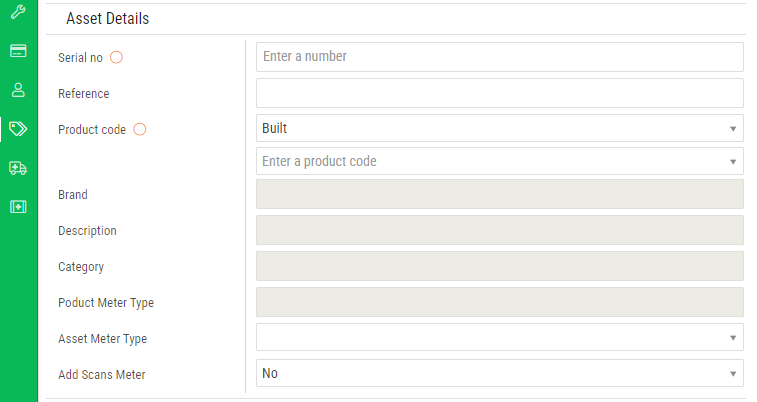
- Search for the Product in the 'Enter a product code' field. Generally you would choose a Built product from this list. If there are no results, change the Product Code drop down to All Products.
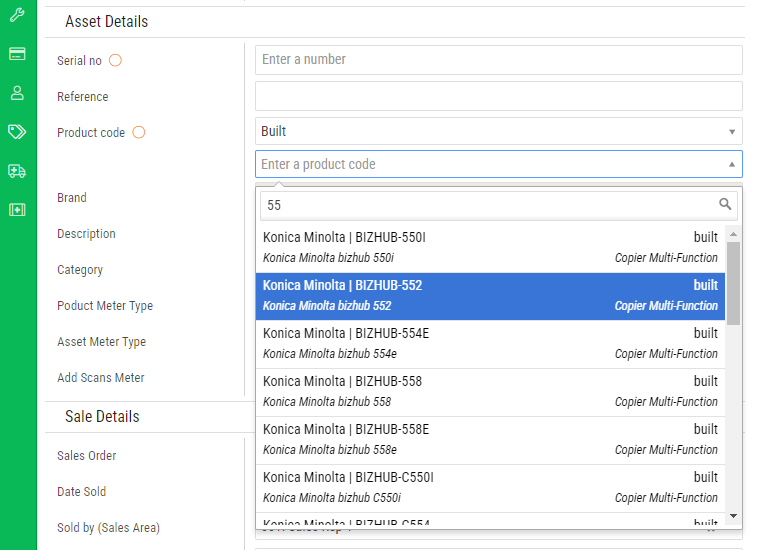
If the Product you are wanting to select does not yet exist, create the Product by following How to create a Product in BMS.

If you have an active Monthly Products DB Update Subscription with Innovative Solutions, escalate the request to add the specific Products to Support.
- In the case of copiers and scans are to be billed, select Yes on Add Scans Meter:
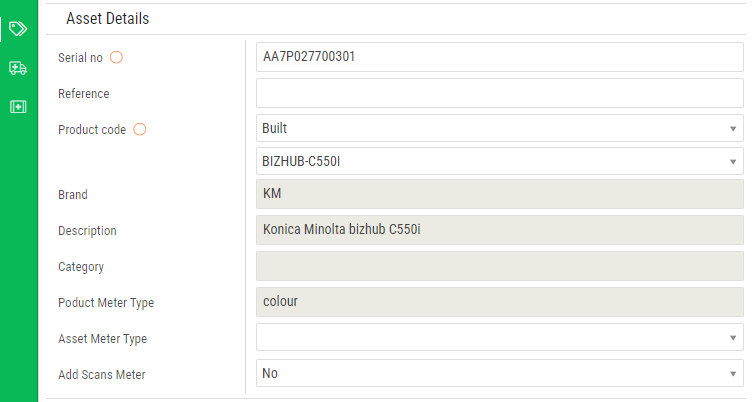
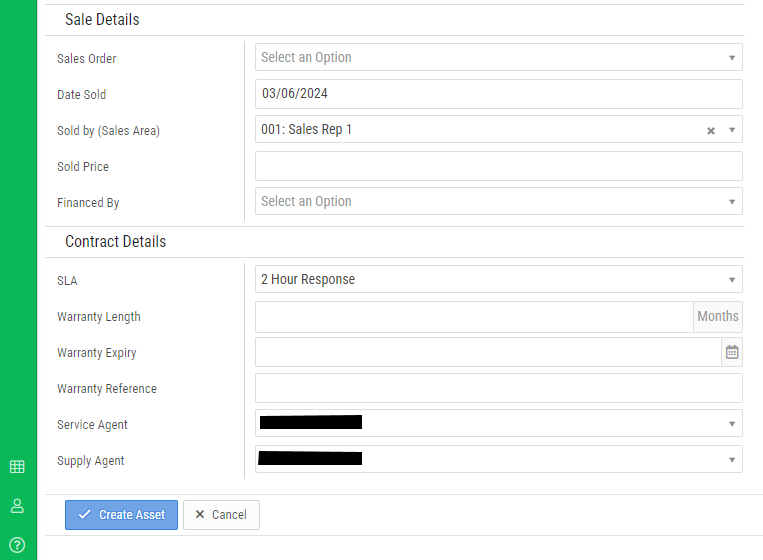
- For the Sales and Contract (Service) details, capture the relevant details.
- Click 'Create Asset'
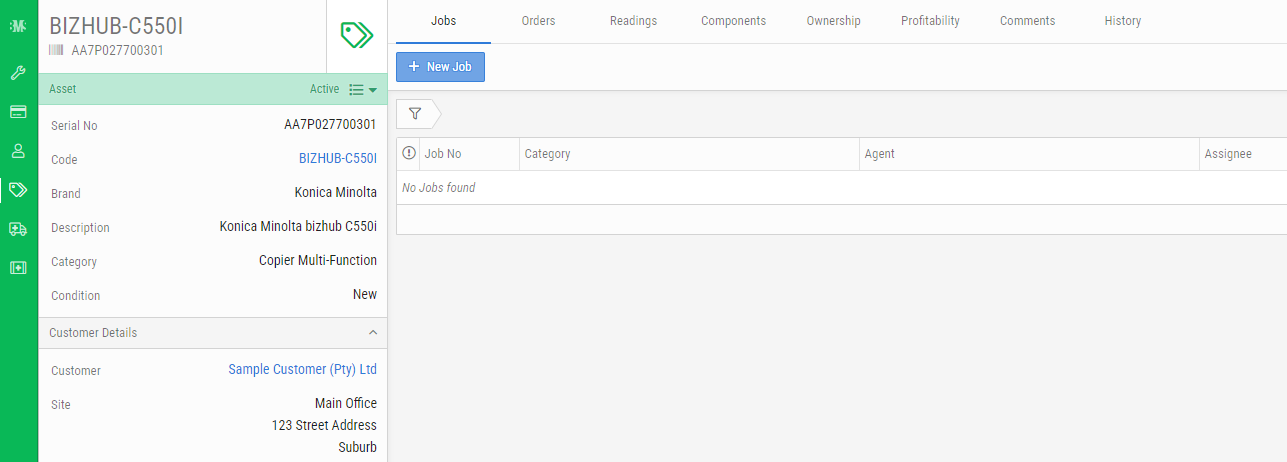
- The asset will now be created under the Customer:
Step 2: Add Components (Options) to the Asset:
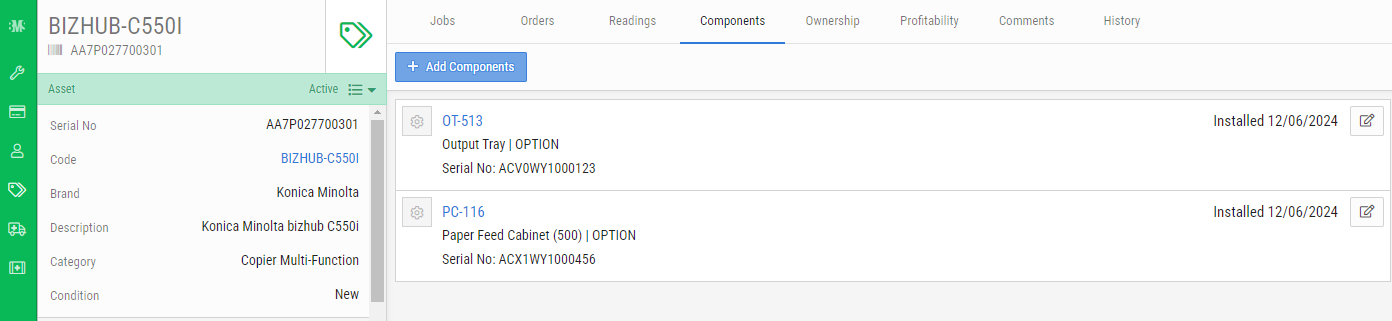
- If the Asset has additional components attached, this can be specified under the Component Tab:
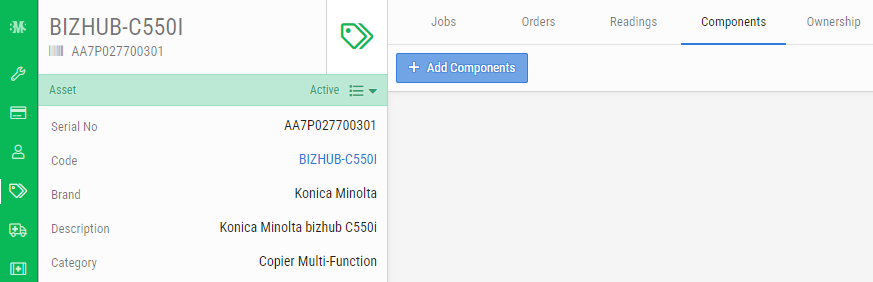
- Click 'Ádd Components'. Any related Products to this Built Product will be listed. Simply select the quantity for each:
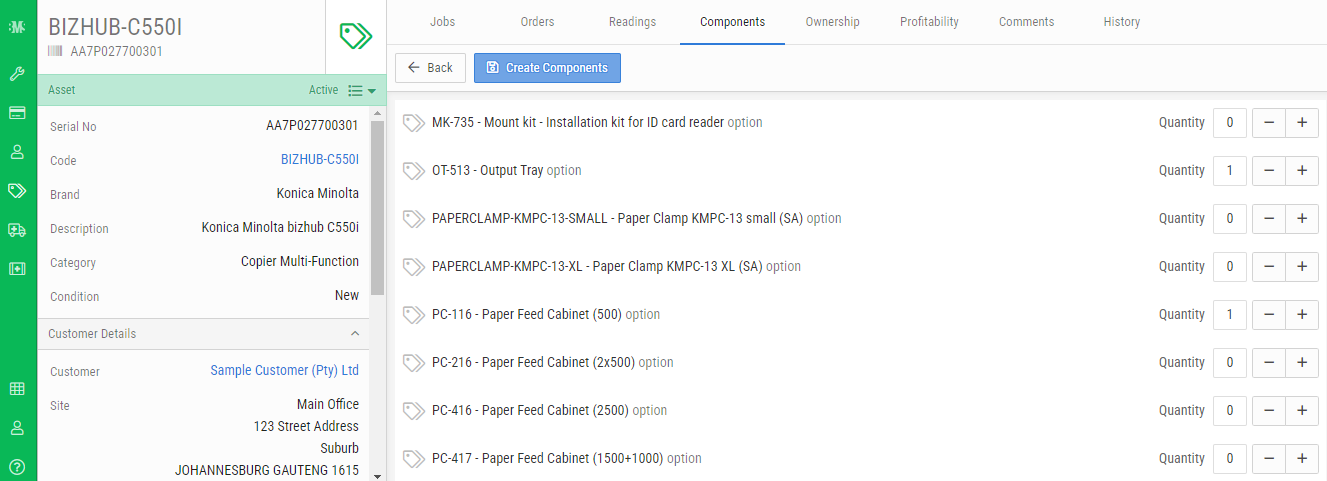
- Click 'Çreate Components'
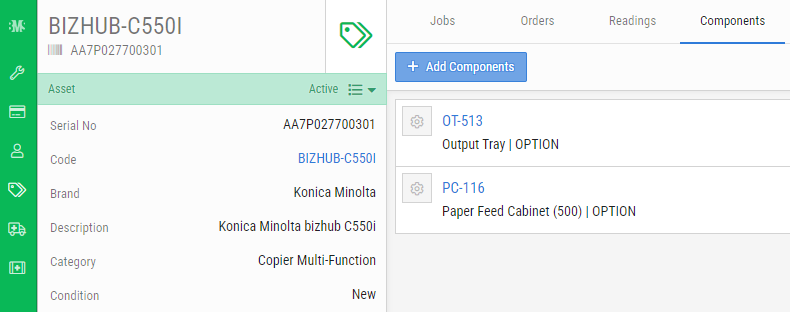
- The Serial Number and Installation date can be specified on each component by editing the item.
- Click 'Save'
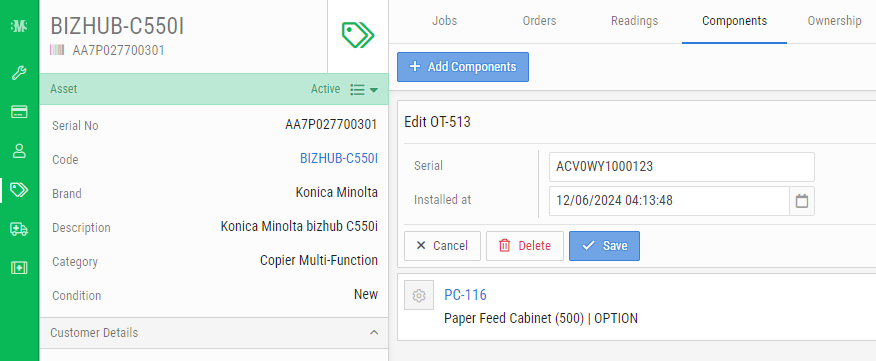
- The Asset and it's components have now been created correctly:

support@innovativesolutions.co.za
+27 61 542 7262
Was this article helpful?
That’s Great!
Thank you for your feedback
Sorry! We couldn't be helpful
Thank you for your feedback
Feedback sent
We appreciate your effort and will try to fix the article