Give an introduction to the topic of this How-to article. For example, let's consider that this article explains how to use article template
Instructions to Install the M-Files Desktop Client
Step 1: Download and install the M-Files Desktop Client
- Access the M-Files Product Centre Downloads Page and download the latest version of the Desktop Only package:
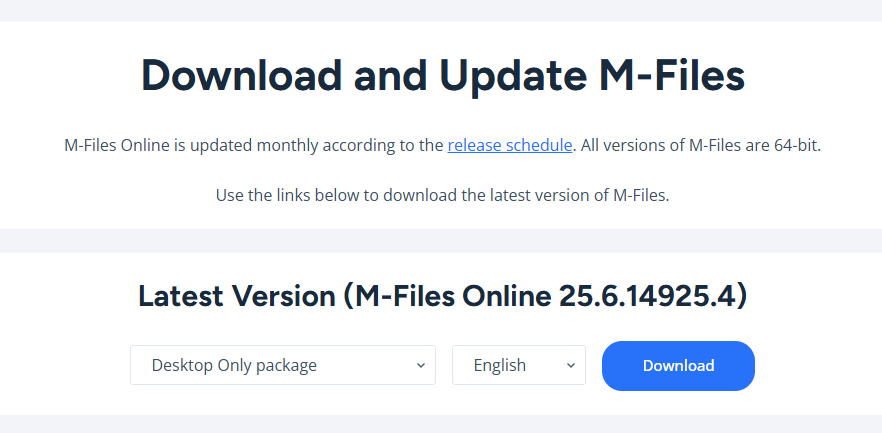
- Run the downloaded installer with admin rights.
Step 2: Adding a Vault Connection
- In the Windows system tray, click the M-Files icon with the secondary mouse button. The system tray is normally in the bottom-right corner of your Windows desktop.
- Select Settings > M-Files Desktop Settings.
- For instructions on how to configure, please see the following article: Adding a Vault Connection.
- Once the Vault is created, enter in the user's details and Test the Connection.
- Log in automatically when Windows is started should be ticked.
- If you are asked to allow external apps running, select Allow.
- Ensure you can login and access M-Files Desktop Client.

support@innovativesolutions.co.za
+27 61 542 7262
Was this article helpful?
That’s Great!
Thank you for your feedback
Sorry! We couldn't be helpful
Thank you for your feedback
Feedback sent
We appreciate your effort and will try to fix the article