Summary
Industries within BMS are used to categorise customers by their industry type. Industries are available as a dropdown when creating or editing a customer record. They can be manually created or imported in bulk.
How to create or import Industries into BMS
- Step 1: Adding an Industry manually
- Step 2: Importing Industries (optional)
Step 1: Adding an Industry manually
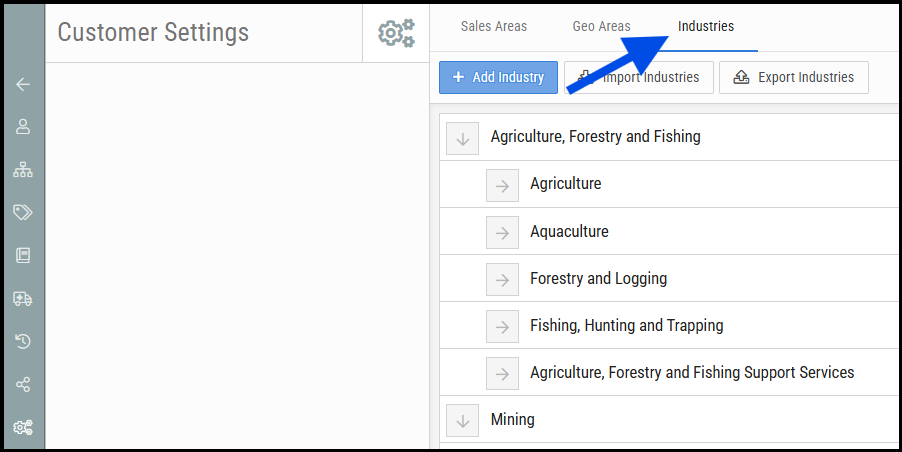
4. Enter a Name.
5. Select a Parent from the dropdown — this determines which top-level industry the new entry falls under.
6. Enter a unique Code.
7. Click Save.
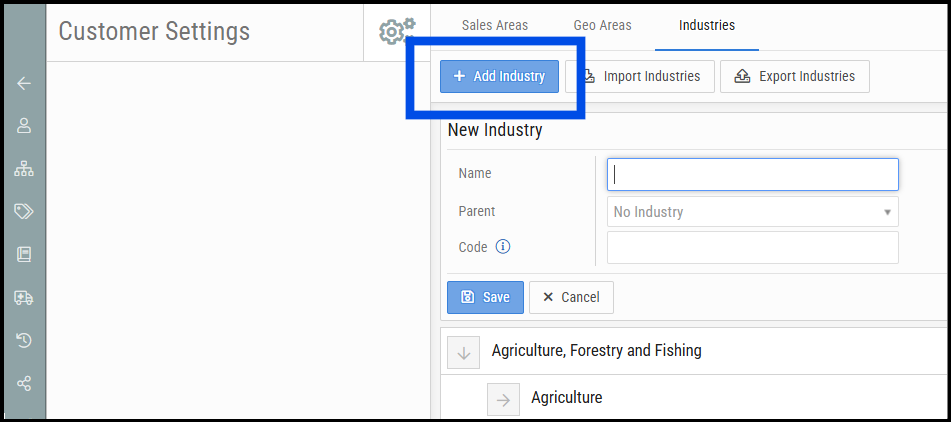
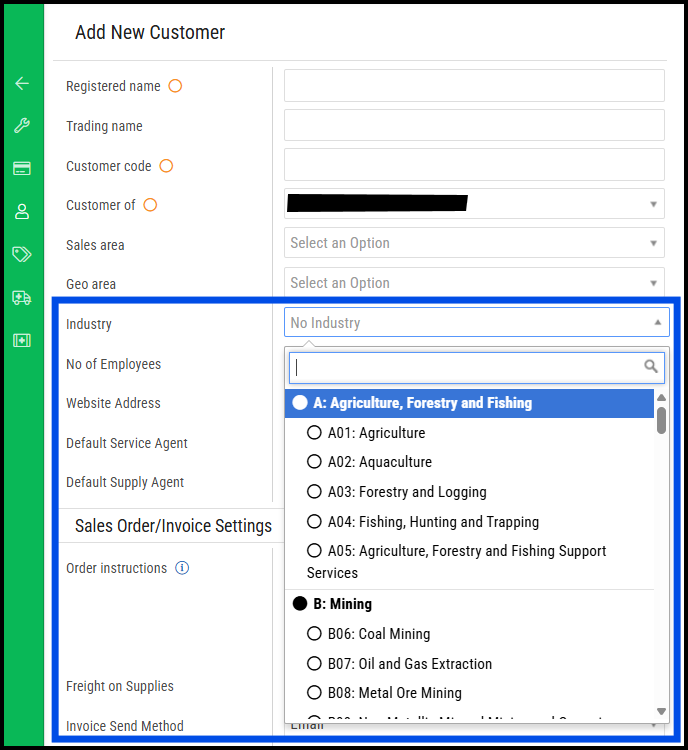
8. The new Industry will now appear in the list and will be available in the Industries dropdown when creating or editing a customer.
1. Navigate to any Customer record or click Add New Customer.
2. Open the Industries dropdown.
3. Confirm the manually added or imported Industries appear in the list.
A template file with pre-populated industries is attached to this article and can be imported directly into BMS.
1. In BMS, go to Admin > Settings > Customer Settings > Industries
2. Click Export Industries to download your current Industries list as a CSV file. Save it to your computer.
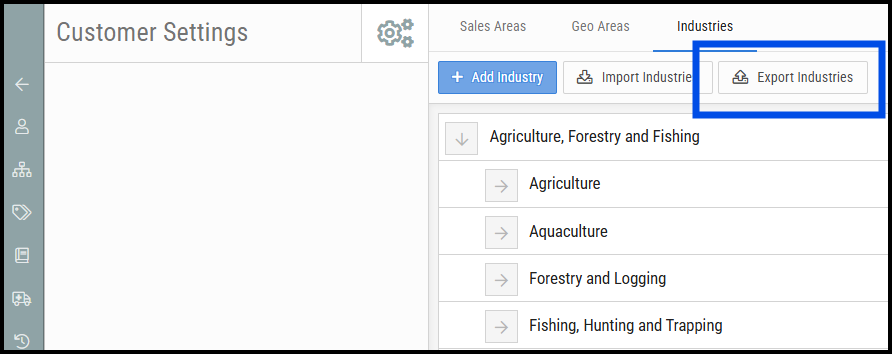
3. Open the CSV file in Excel.
4. Make the required edits or additions. Set the Type field to industry and specify the parent industry code the entry should fall under.
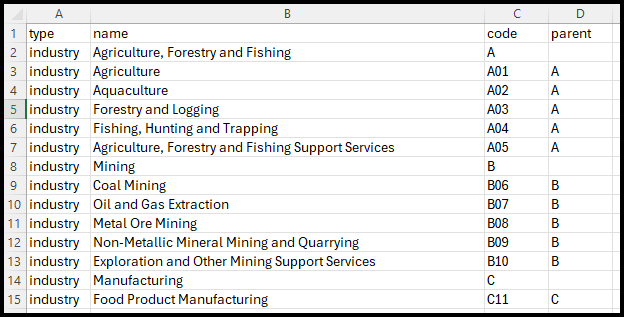
5. Save the file in CSV format.
6. Return to BMS: Go to Admin > Settings > Customer Settings > Industries.
7. Click Import Industries, browse for the updated CSV file, and select it.
8. Click Import Selected File.
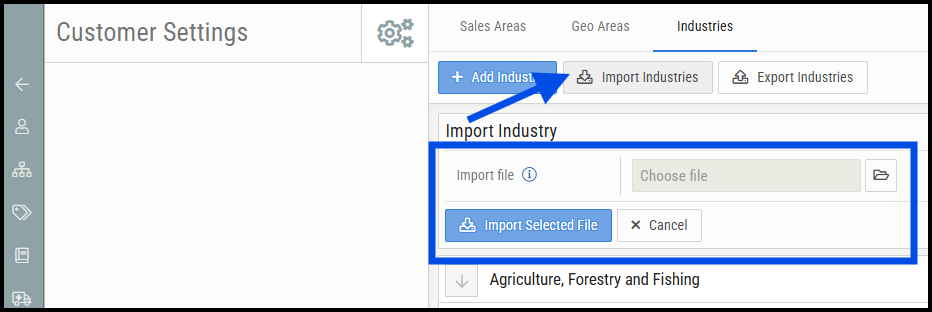
9. The Industries list will now be updated with the new or modified entries.
- The Parent field determines the hierarchy — make sure you select the correct parent industry before saving.
- The Code field must be unique for each Industry — use a short, consistent naming convention.
- The Type field in the CSV must be set to
industryfor the import to process correctly.
- A pre-populated template is attached to this article and can be imported directly without modification.
- Always export first before importing, so you have a backup and a correctly formatted template to work from.
- Importing will add new entries and update existing ones — it will not delete Industries that are not in the import file.

support@innovativesolutions.co.za
+27 61 542 7262
Was this article helpful?
That’s Great!
Thank you for your feedback
Sorry! We couldn't be helpful
Thank you for your feedback
Feedback sent
We appreciate your effort and will try to fix the article