Job Categories within BMS are used to categorize the different type of Jobs. Job Categories can be filtered on the Job page in the Service Module. Job Categories can be manually created or imported in bulk.
How to create or import Job Categories into BMS
Step 1: Adding Job Categories
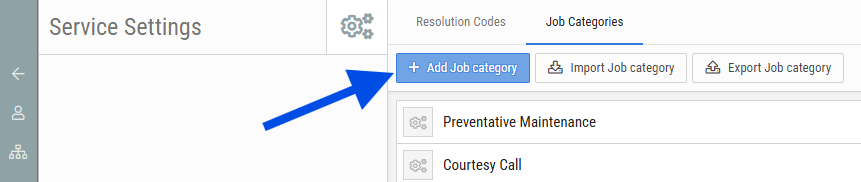
- Under the BMS Admin Module, access Job Categories: Admin > Service Settings > Job Categories (https://[yourcompany].bmserp.com/admin/settings?category=service#JobCategoryContent)
- Click on + Add Job category
- Enter in a Name as well as a Code. The Code can be any code of your choice. Click Save.
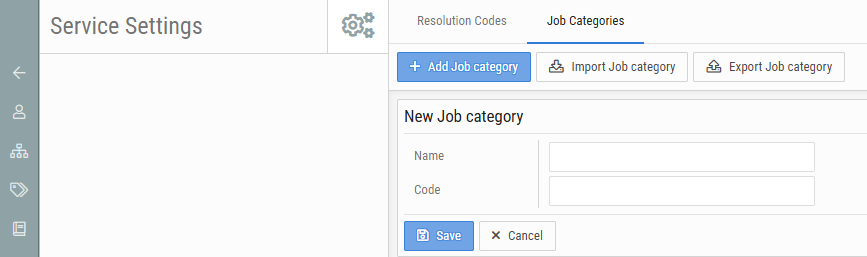
- The Job Categories will now be available to select on any Job:

Step 2: Importing Job Categories (optional)
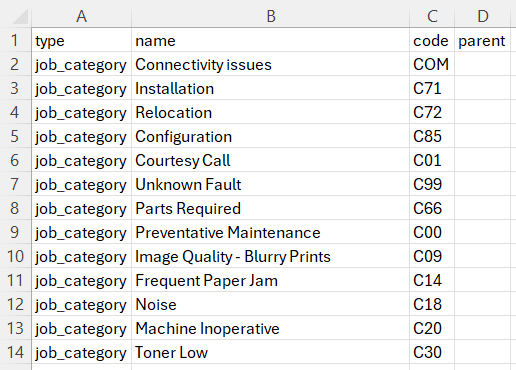
The attached file is a template that can be used for this process.
- Under the BMS Admin Module, access Job Categories: Admin > Service Settings > Job Categories (https://[yourcompany].bmserp.com/admin/settings?category=service#JobCategoryContent)
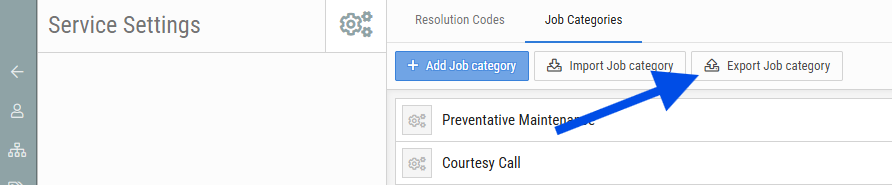
- First, click on Export Job category to download your current Job Category list.
- Once downloaded, open the CSV file and make the relevant edits or additions:
- Save the file and return to BMS, Admin > Service Settings > Job Categories
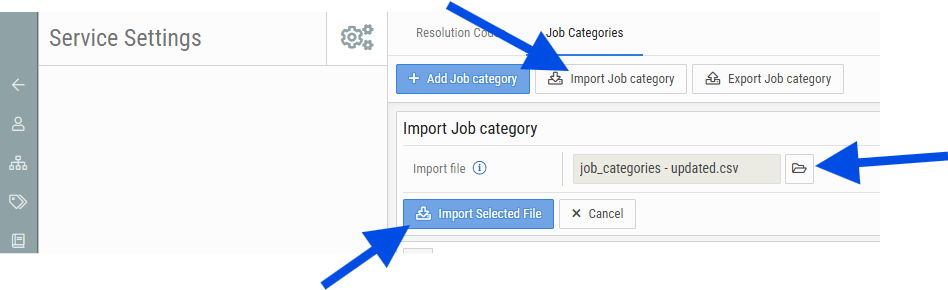
- Click on Import Job category, browse for the updated file, then select Import Selected File.
- The additional or updated Job Categories will now be available to select on any Job:

support@innovativesolutions.co.za
+27 61 542 7262
Was this article helpful?
That’s Great!
Thank you for your feedback
Sorry! We couldn't be helpful
Thank you for your feedback
Feedback sent
We appreciate your effort and will try to fix the article