Summary
Resolution Codes within BMS are used to categorize how a Job was resolved. Resolution Codes can be filtered on the Job page in the Service Module. Resolution Codes can be manually created or imported in bulk.
How to create or import Resolution Codes into BMS
- Step 1: Creating Resolution Codes
- Step 2: Importing Resolution Codes (optional)
Step 1: Creating Resolution Codes
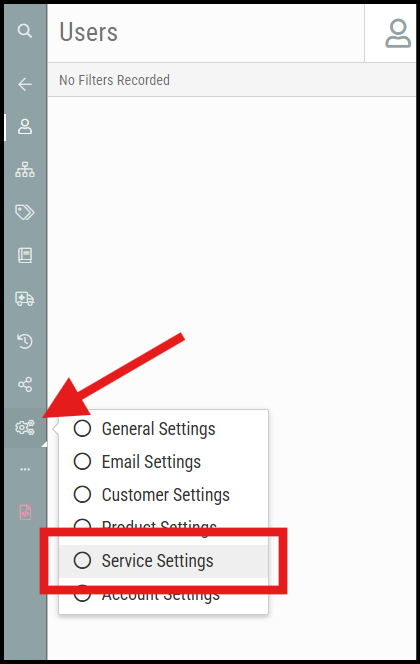
- Under the BMS Admin Module, access Resolution Codes: Admin > General Settings > Service Settings > Resolution Codes
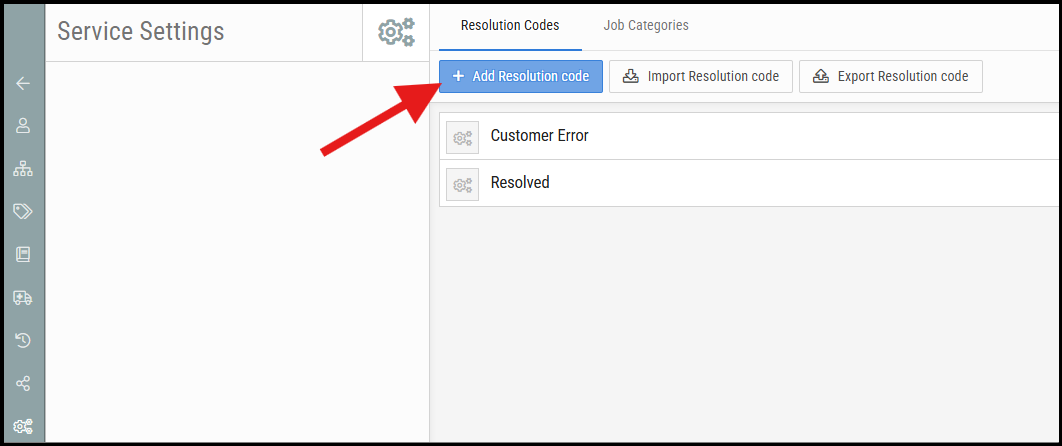
- Click + Add Resolution code.
3. Enter a Name and a Code. The Code can be any value of your choice.
4. Click Save.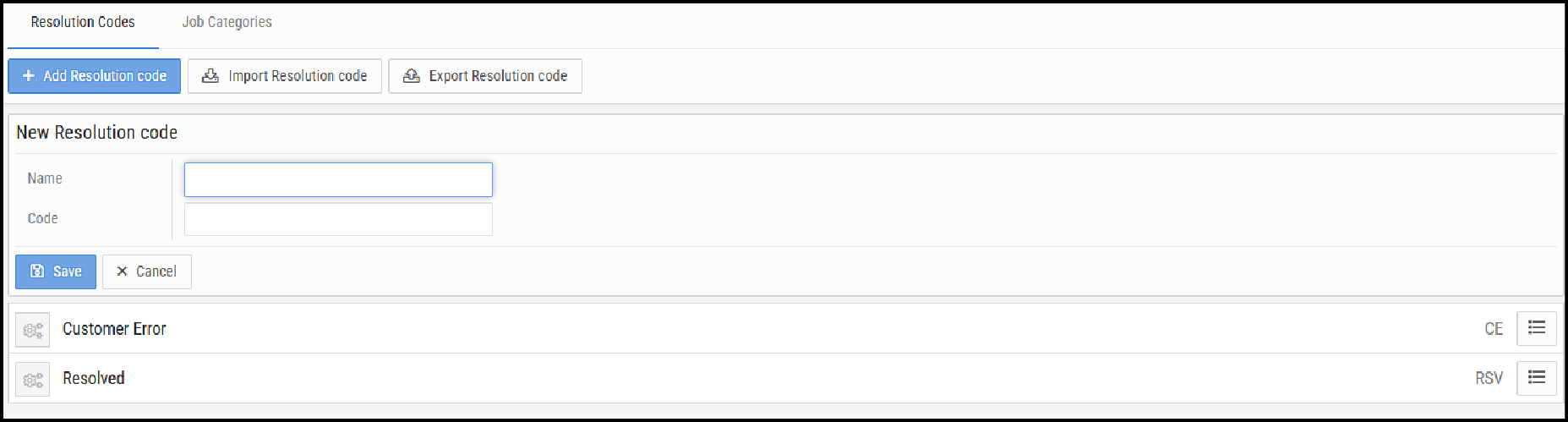
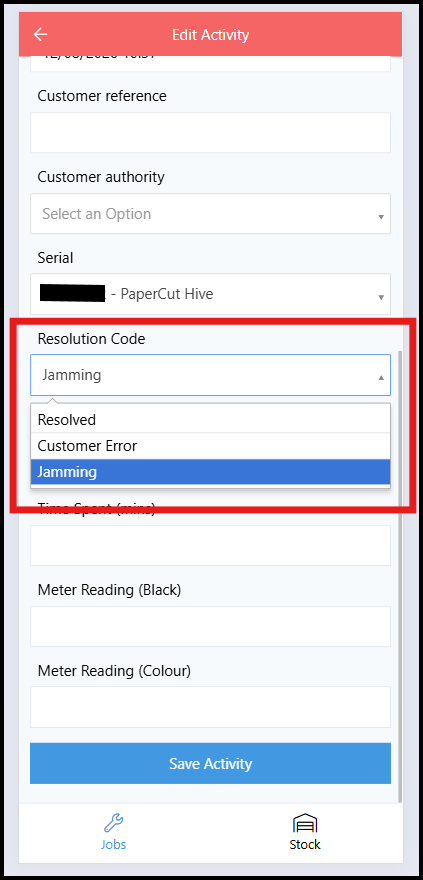
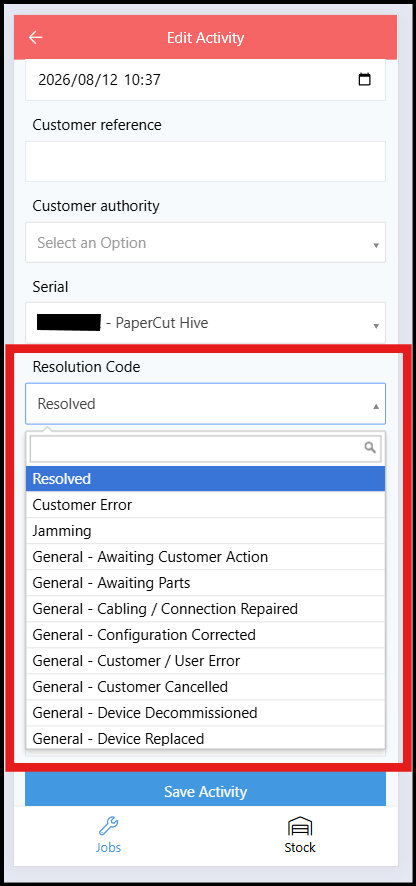
5. The Resolution Code will now be available to select on any Job.
Step 2: Importing Resolution Codes (optional)
A template file is attached to this article and can be used for this process, which contains most commonly used Resolutions for Generic Support, Printers, Networking and CCTV
- Under the BMS Admin Module, access Resolution Codes: Admin > General Settings > Service Settings > Resolution Codes
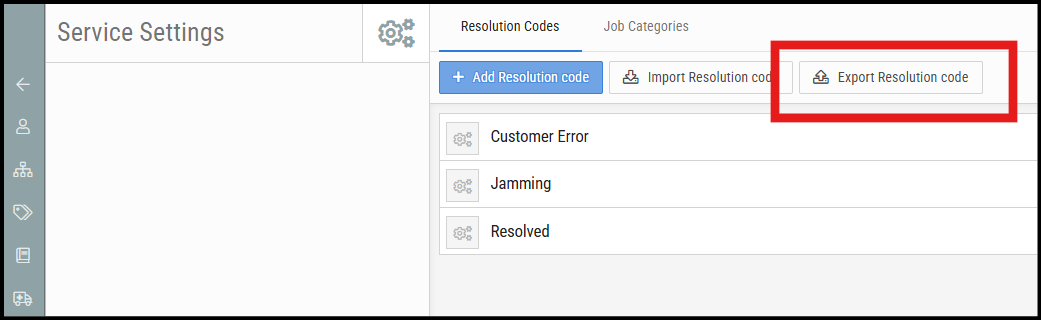
- Click Export Resolution code to download your current Resolution Code list.
3. Once downloaded, open the CSV file and make the relevant edits or additions.
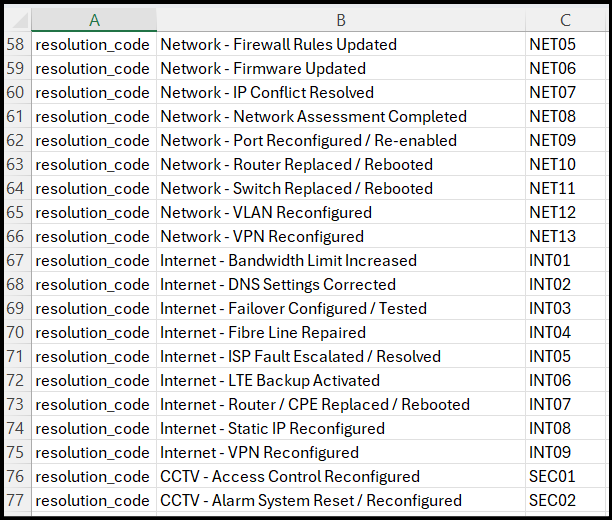
4. Save the file and return to BMS: Admin > Service Settings > Resolution Codes
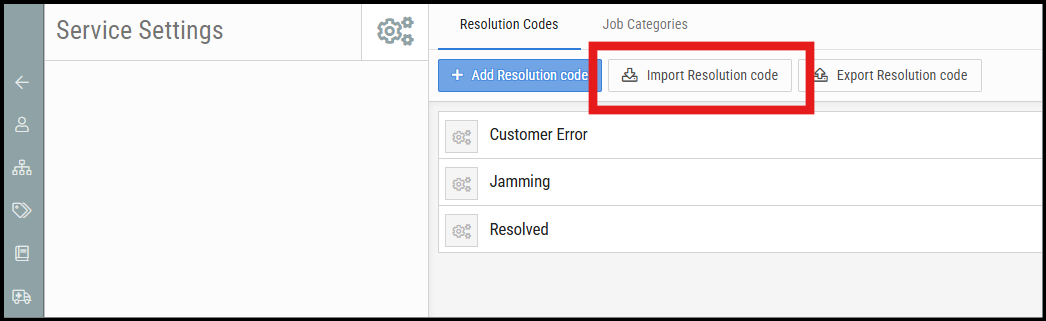
5. Click Import Resolution code, browse for the updated file, then select Import Selected File.
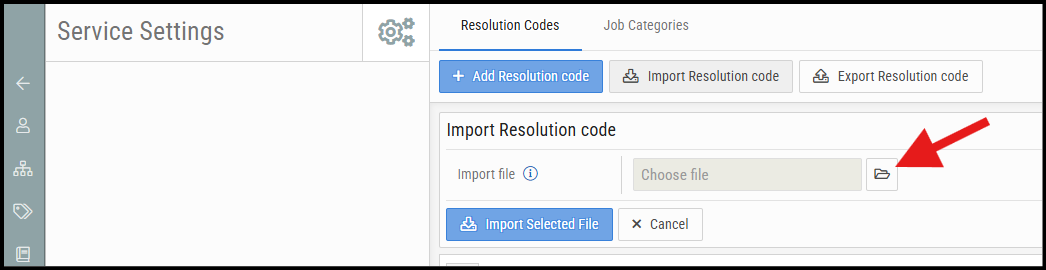
6. The additional or updated Resolution Codes will now be available to select on any Job.
Important notes
- The Code field can be any value — use a short, consistent naming convention for easy identification.
- Always export first before importing, so you have a backup of the current list and a correctly formatted template to work from.
- Importing will add new entries and update existing ones — it will not delete codes that are not in the import file.

Was this article helpful?
That’s Great!
Thank you for your feedback
Sorry! We couldn't be helpful
Thank you for your feedback
Feedback sent
We appreciate your effort and will try to fix the article