Step 1:
- BMS needs access to the Xero account (Demo or Live accounts) by added 2 users as Advisor roles.
- The following two users need to be created as Advisors:
- Michael Mulligan: michael@ambit.digital
- Phillip Mulligan: mozcomp@mozcomp.com.au
Step 2:
BMS will then configure the integration from their side.
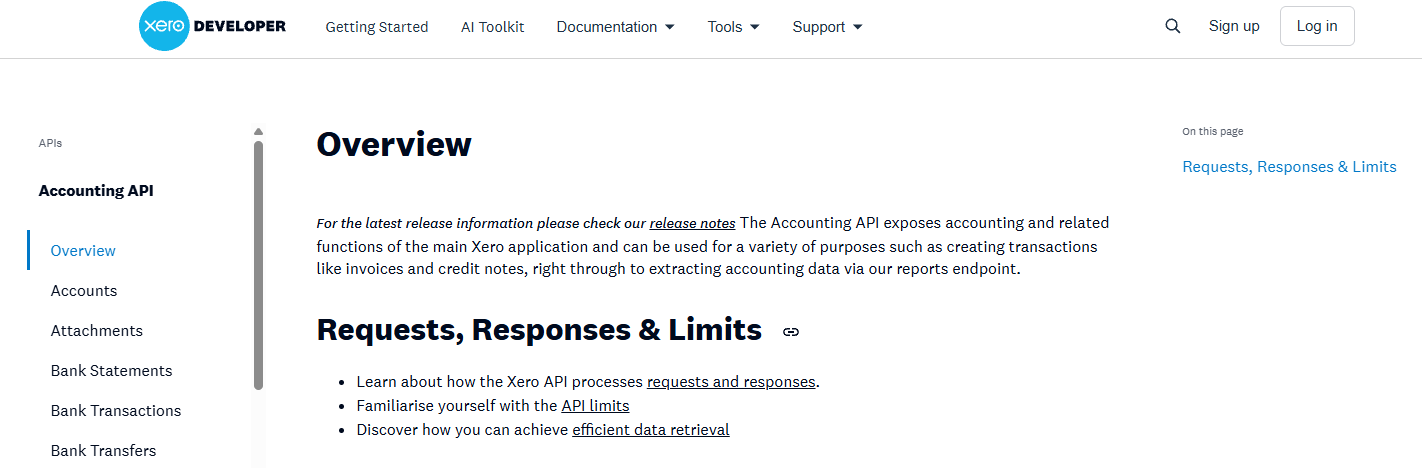
2Login - it should take you to here ...
Click New App
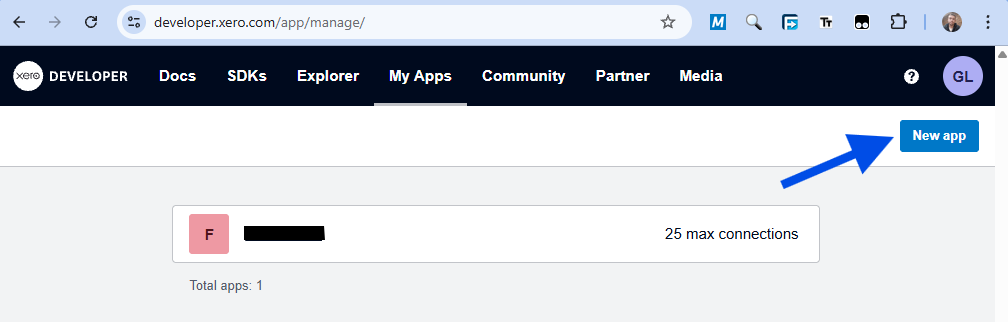
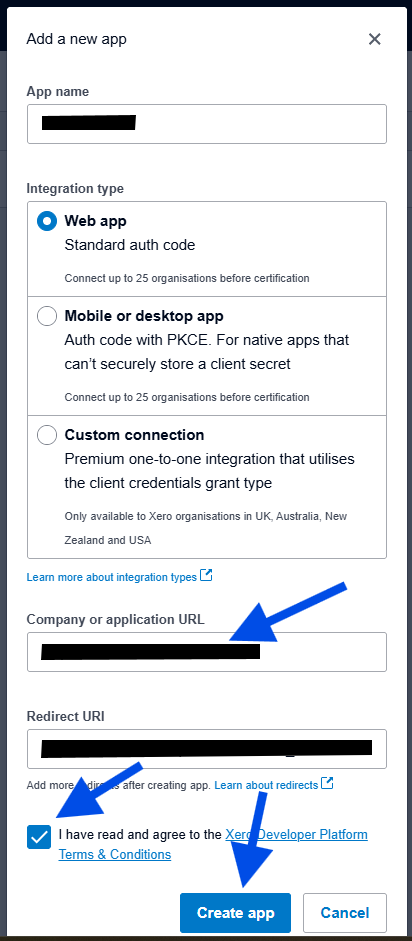
select New app - don't get too imaginative, use similar structure for name.
App name: BMS-KMDPS
Company or application URL: kmdps.bmserp.com
redirect URI: https://kmdps.bmserp.com/auth/xero_oauth2/callback
Create App
This forms the basis of a new app, which in full looks like this ...
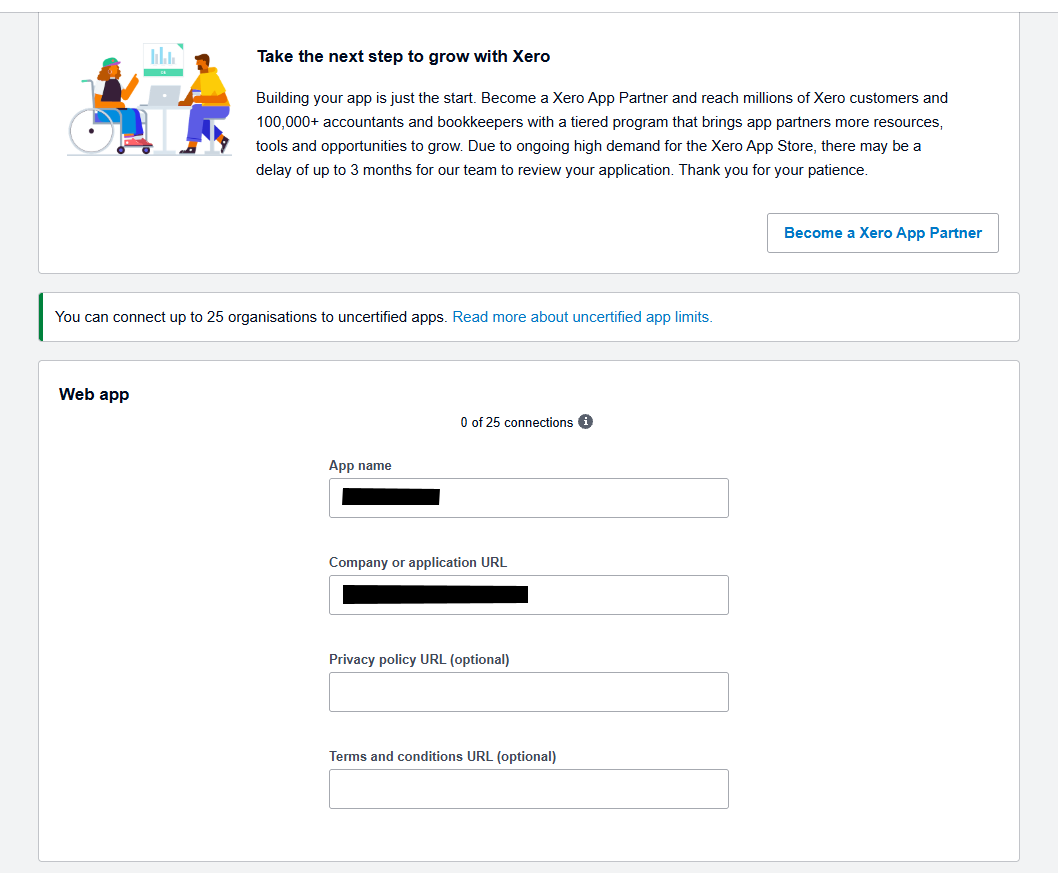
nothing to change here
Configuration ...
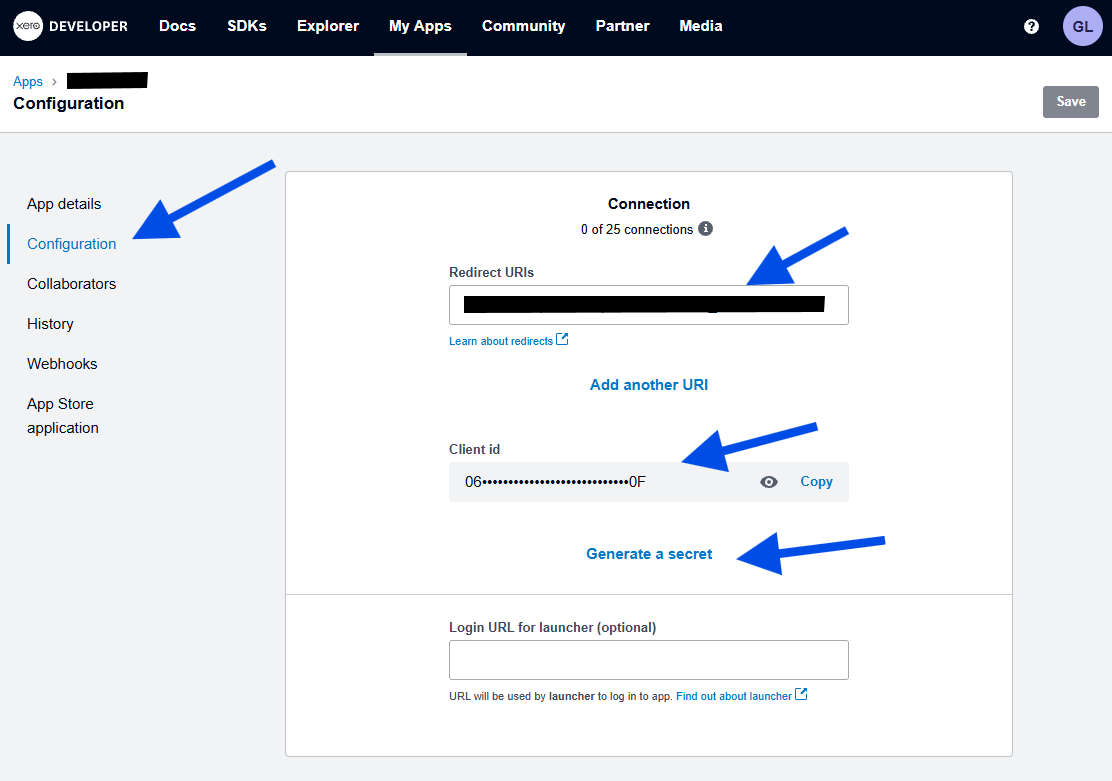
Look at & copy the Client Id ... B5B901E767BE45F2AEA42C2007C25256 (0639FF15C92943B2B3BE6AF2E271280F )
5C872E20E8D5425BAA47C4595B7F6F44
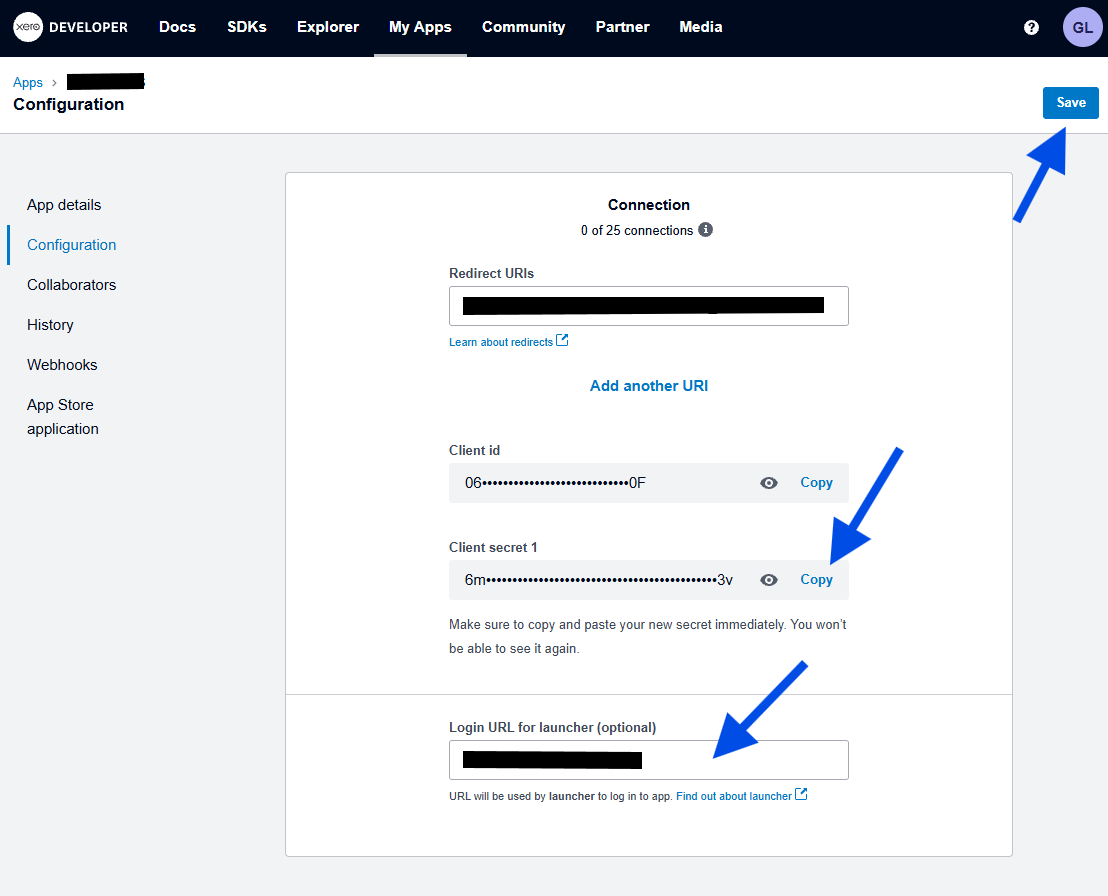
Then Generate & Save the Secret ... JE9CpGa8GSoTt5MrCwYQwjie7qC914Xn4QXO_wXylm2000KT (6m833lKjoOZtUZHBXh2Po_85jQ_6Uf1_lKDqO0CMYPaVLL3v )
k2_b2_Lh1l-dG9BVeJQDh_8CyUIvVG96YdUubuSPMIEuVCc8
This is the only time it allows you to save the secret
That's all we need here ..
Be aware, if you create an app for the same client, the Client Id & Client Secret will be different to the ones I create, either can be used.
NEXT ...
Login to Xero change organisation to KMDPS, or to whatever organisation you're setting up ...
NEXT ...
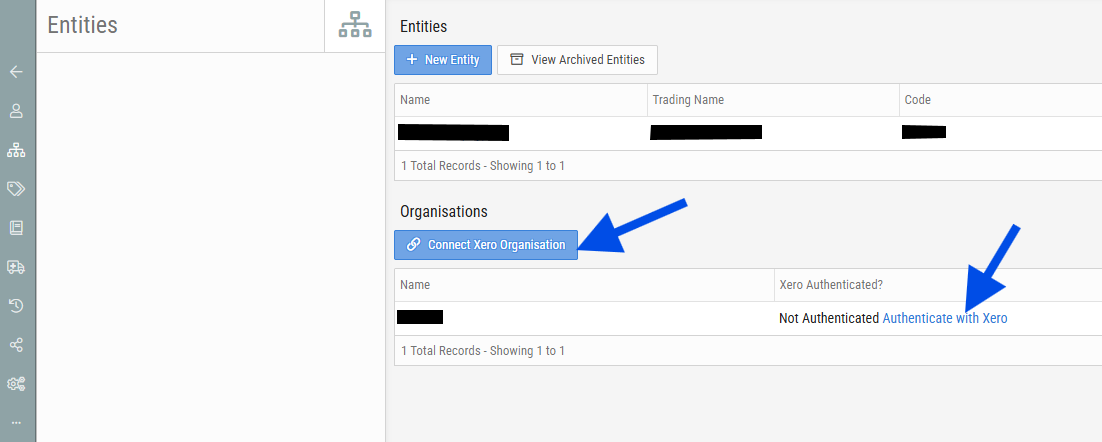
Login to BMS - go to Admin/Entities ... select the Entity - Organisations - Connect Xero Organisation ...
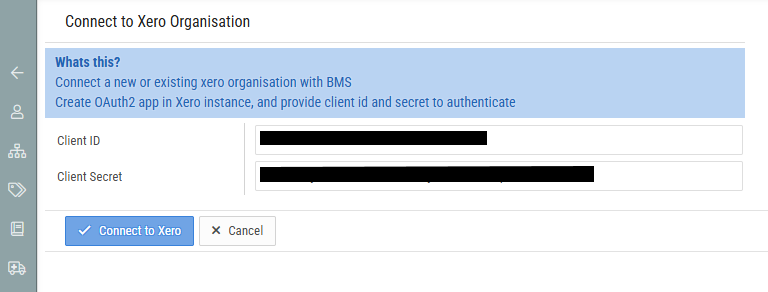
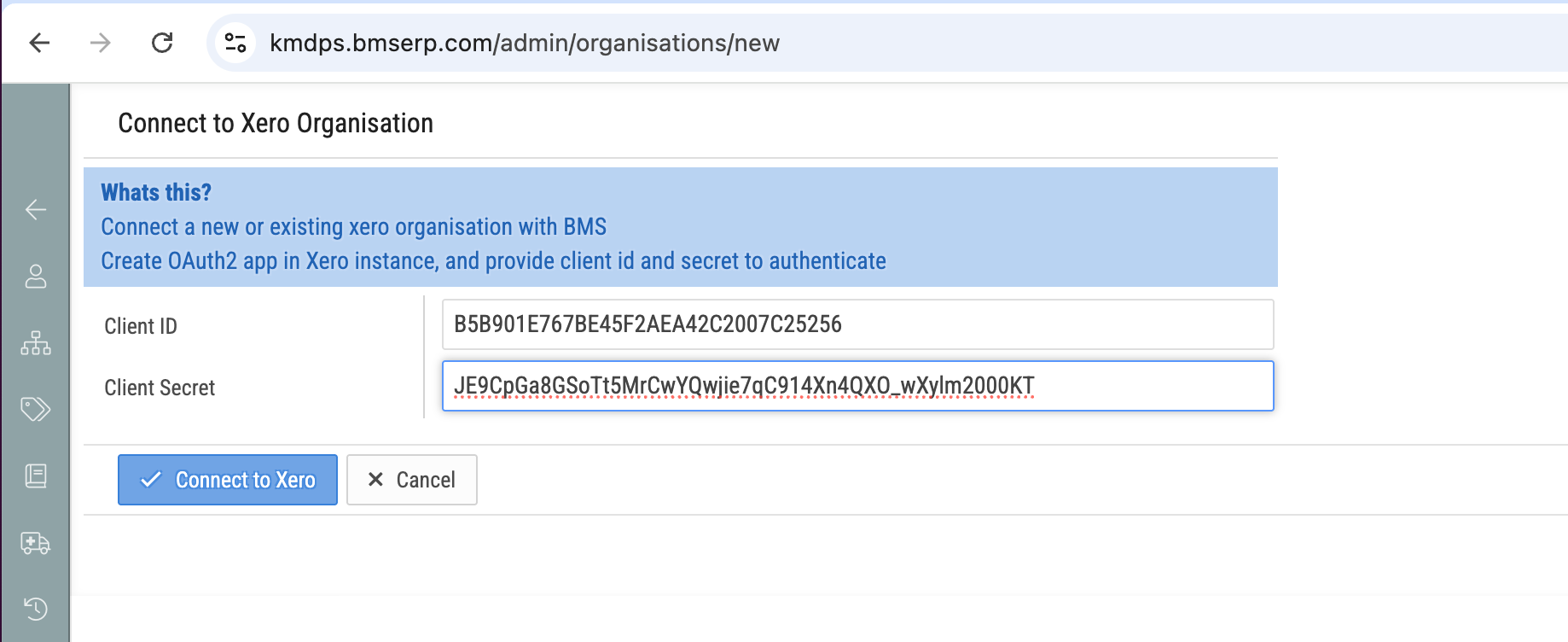
Copy the Client Id & Client Secret from above - Connect to Xero.
This then hands over to Xero for Xero to authenticate you - which because you just logged in above, it should already have your username & authenticated you ...
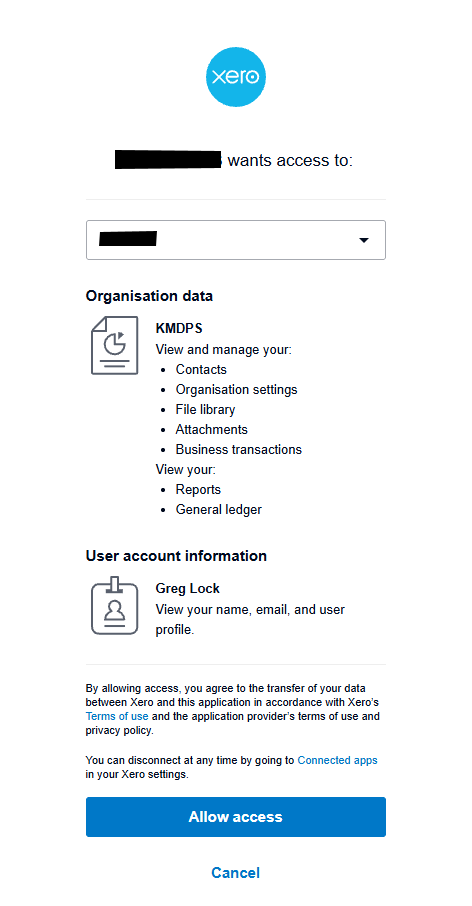
The drop down should include the client you're trying to connect to ...
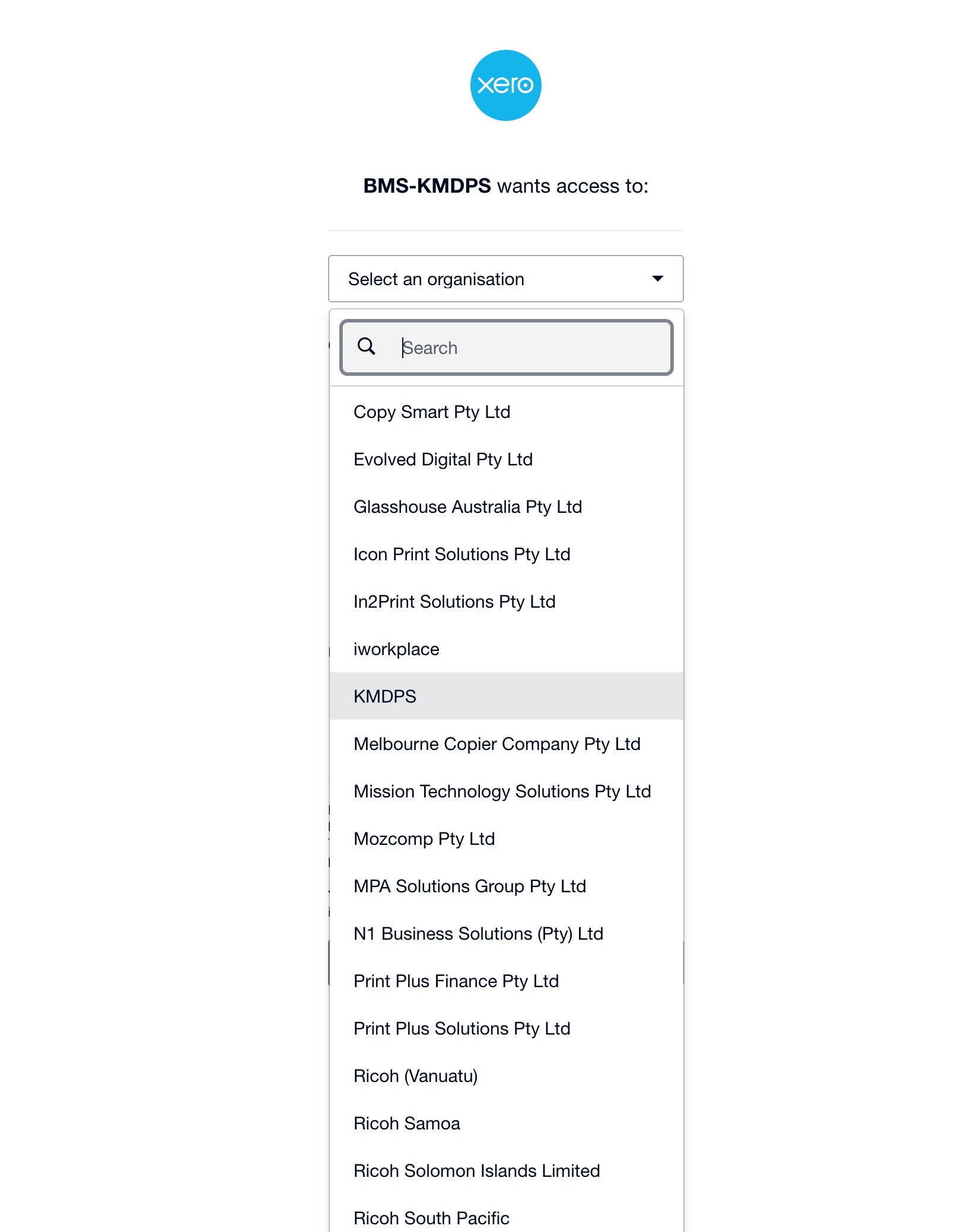
selecting it - Allow Access ... then returns the authentication details to BMS ...
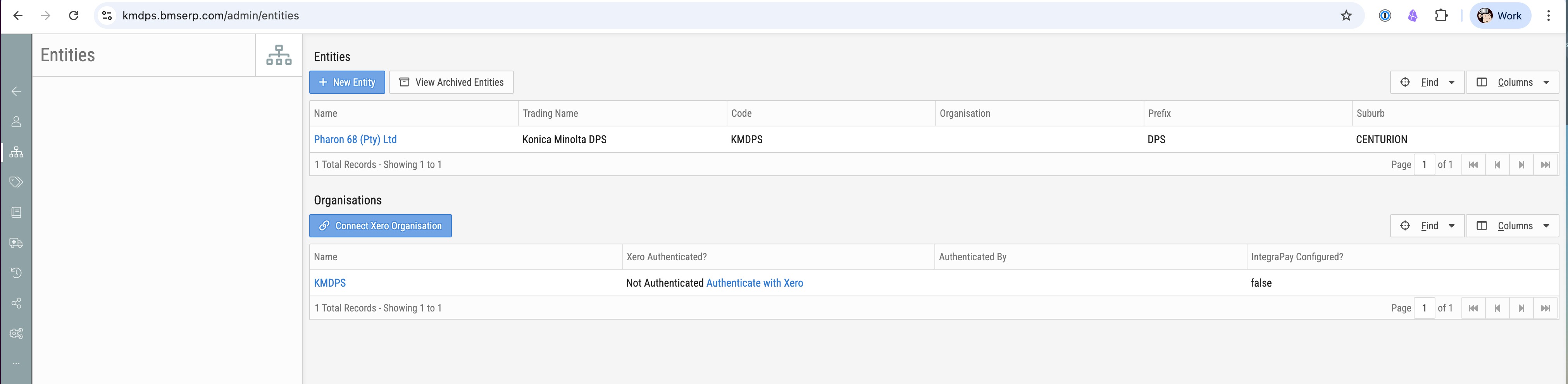
Now press the Authenticate with Xero link ...
this re-authenticates with Xero, however, it already knows the Xero tenant, so now asks Continue with 1 organisation ...
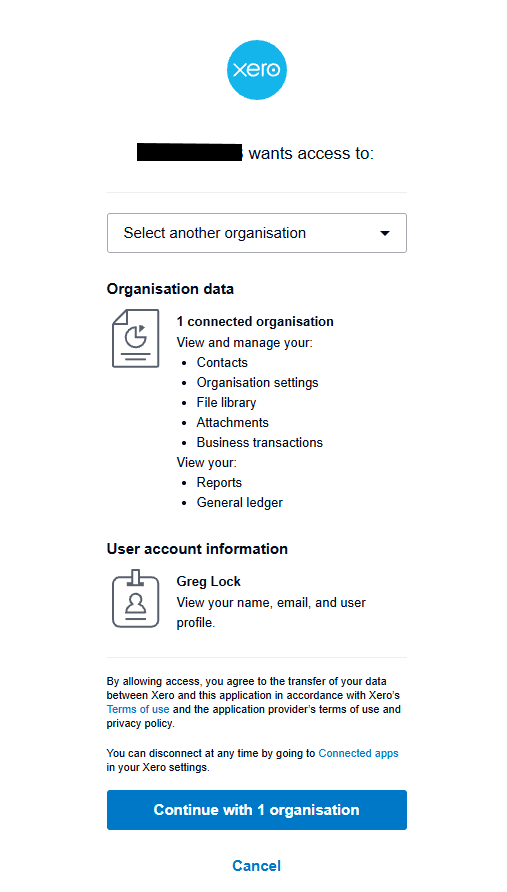
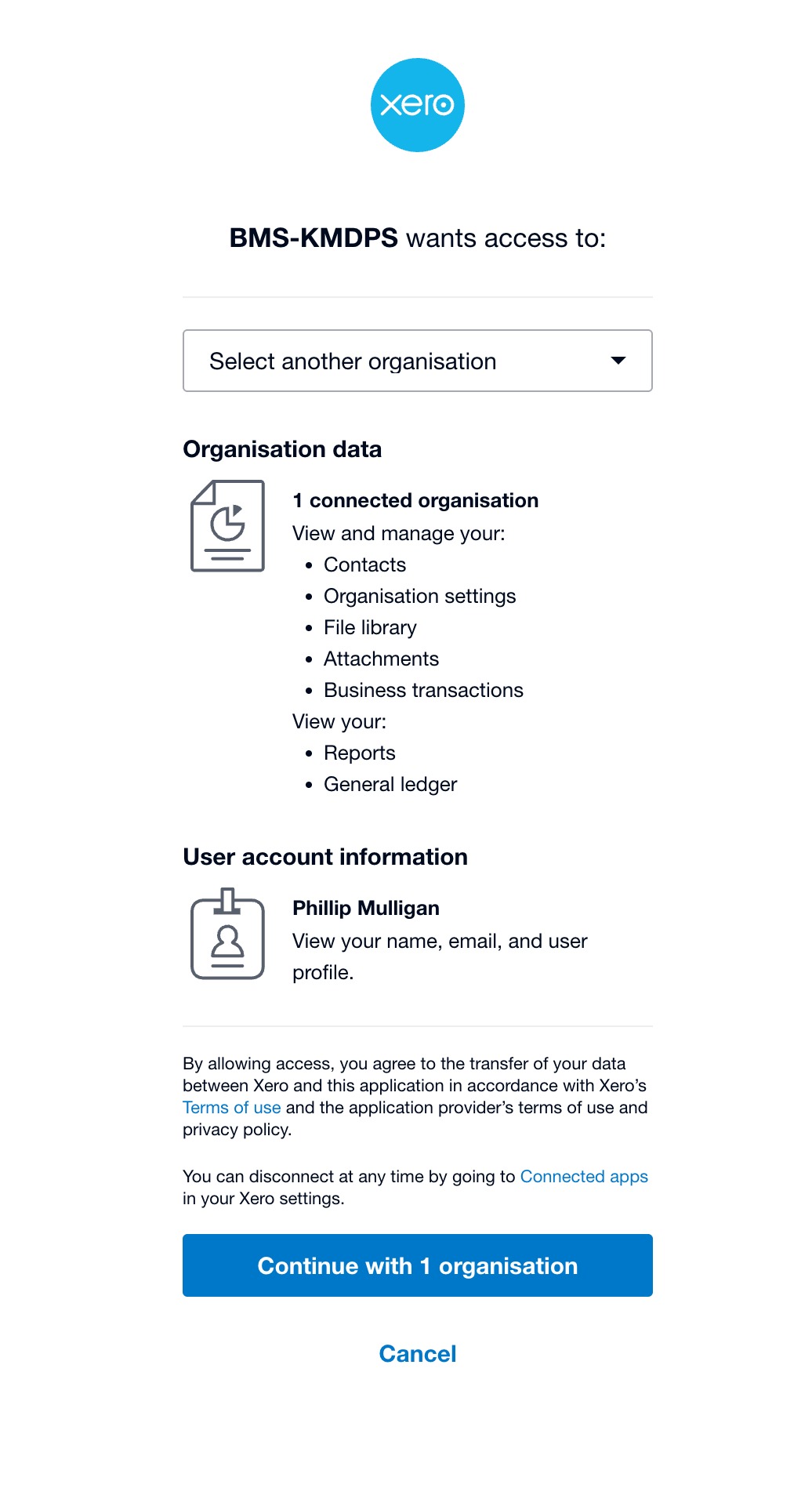
This returns to BMS again, but notice, it's now Authenticated! ...
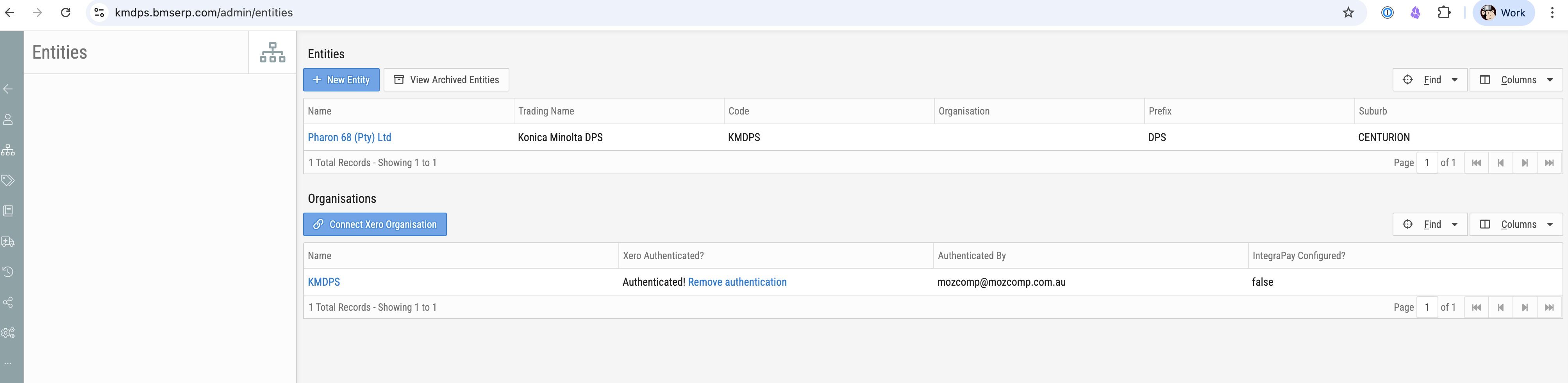
Now talking to Xero - notice it has picked up the Organisation name from Xero.
The reason we currently have to create a new app for each client ...
In the Configuration, see the Redirect URI - this is where Xero returns to after authentication.
Because we contain our client/tenant as the subdomain in our URL, each tenant has a different Redirect URI, in this case https://kmdps.bmserp.com/auth .....
Although we can specify several, I think there's a maximum of 5, it's not something that can be changed during the authentication process.
At some point in the future, we will enable a central authentication URL that is common to all tenants, however, at the moment that's not available.
When it is, we can then move to a single BMS app registration.
- Use the BMS integration into Xero (request to client) Ticket Template
Step 2: Populate the content in the template
If you go to https://yaxxa.bmserp.com/admin/entities - Connect Xero Organisation, then use the same Client Id & Secret as for Yaxxa 12, this should take you to the Xero Authorisation page.
Instead of the "Continue with 1 organisation", select YN1 from the "Select another organisation" dropdown.
Once selected, BMS should create the new organisation for YN1.
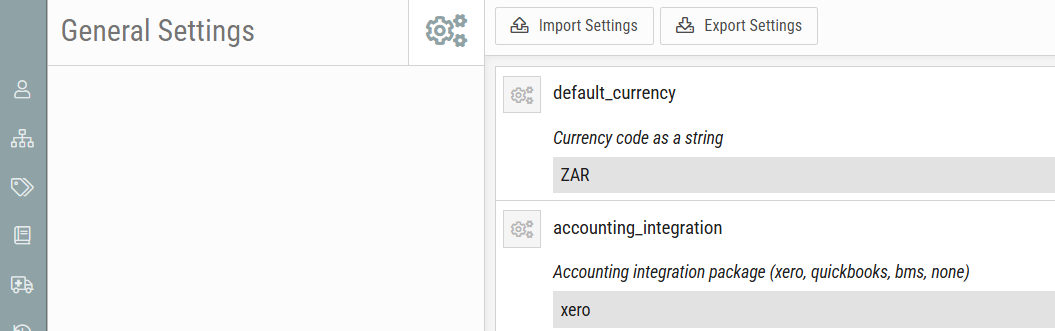
At the moment, the General Setting for "accounting_integration" is "none".
At some point, this needs to be changed to "xero", but only once you're ready for it.
When you change it to "xero", if you go to the Entity: YN1, you'll be given an option to select the correct organisation to associate.
Be aware, "accounting_integration" is a global setting, not selected by Entity.
If you don't want an entity to participate, remove the Organisation selection for that entity.

support@innovativesolutions.co.za
+27 61 542 7262
Was this article helpful?
That’s Great!
Thank you for your feedback
Sorry! We couldn't be helpful
Thank you for your feedback
Feedback sent
We appreciate your effort and will try to fix the article