Product
PaperCut MF, Konica Minolta bizhub C3350, C3351, C3850; ineo+ 3350, ineo+ 3850, 4050/4750, 4050i/4750i
Problem
When scanning documents from a Konica Minolta A4 MFP using PaperCut MF, the output is always in landscape orientation. The scan orientation setting in PaperCut cannot be changed to portrait, regardless of the orientation selected in the PaperCut scan options.
Symptoms
- Document scans from PaperCut MF always appear in landscape orientation.
- The orientation option in PaperCut scan settings has no effect on the output.
- Changing the orientation in PaperCut MF does not change the scanned document output.
- Scanning from the MFP's native terminal (not PaperCut) produces the correct orientation.
Environment
Field | Detail |
Product | PaperCut MF |
Device / Platform | Konica Minolta bizhub C3350, C3351, C3850; ineo+ 3350, ineo+ 3850, 4050/4750, 4050i/4750i |
Interface | PaperCut MF |
PaperCut version | Prior to 17.2.1 |
Affected version(s) | PaperCut MF versions before 17.2.1 |
Possible Causes
- PaperCut version is earlier than 17.2.1 — the landscape orientation fix was introduced in this version.
- The
ext-device.konica-minolta.device-type-a4device setting is not enabled (set to [N]) in PaperCut Admin Console.
Resolution
Try each solution in order until the issue is resolved.
Solution 1: Update PaperCut to version 17.2.1 or later
A new setting for controlling PDF file orientation when using the application scan workflow was introduced in PaperCut version 17.2.1. Upgrading to this version or later is required.
- Check the current PaperCut version in the PaperCut Admin Console.
- If the version is earlier than 17.2.1, download and install the latest version from the PaperCut website.
- Follow the PaperCut upgrade instructions for your deployment.
- Restart the PaperCut services after the upgrade is complete.
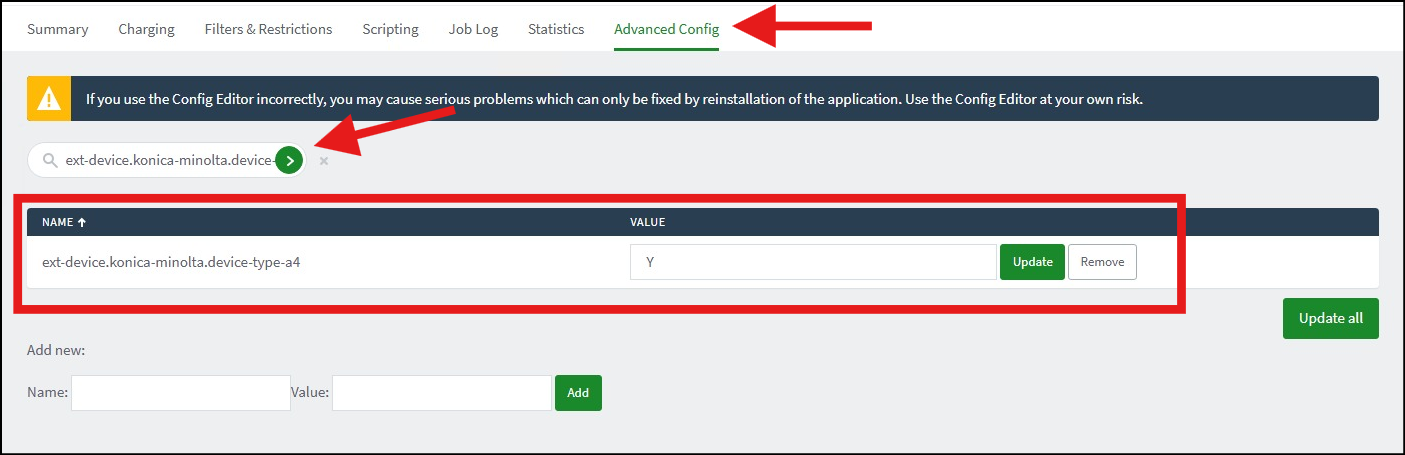
Solution 2: Enable the device-type-a4 setting in PaperCut
Once PaperCut is updated to version 17.2.1 or later, enable the device-type-a4 setting for A4 model MFPs:
- Log in to the PaperCut Admin Console.
- Navigate to Device Settings > Advanced Settings - Page 2 for the affected MFP.
- Locate the setting:
ext-device.konica-minolta.device-type-a4
- Change the value from [N] (default) to [Y].
- Save the changes.
- The MFP will now respect the orientation settings in PaperCut MF.
Verification
- Open PaperCut MF on the affected MFP.
- Select a document to scan.
- In the Scan Options, select Portrait orientation.
- Scan the document.
- Verify that the output is now in portrait orientation (not landscape).
Prevention
- Always keep PaperCut updated to the latest version to ensure all fixes and features are available.
- When deploying A4 model MFPs with PaperCut, ensure the
ext-device.konica-minolta.device-type-a4setting is set to [Y] during initial configuration.
- Test the orientation setting on a few documents after enabling the device-type-a4 setting to confirm it is working correctly.
Important notes
- This setting should only be enabled for the A4 machine models listed (Konica Minolta bizhub C3350, C3351, C3850; ineo+ 3350, ineo+ 3850, 4050/4750, 4050i/4750i).
Do not enable this setting for other device models, as it may cause unexpected behaviour.
- This fix has been confirmed to work with:
- C3351/C3851 with web browser enabled
- C3350/C3850 with optional web-browser activated
- 4050/4750 with optional web-browser activated
- The default value of this setting is [N] — you must manually change it to [Y].
- If the issue persists after both solutions have been applied, contact PaperCut or Konica Minolta support.
- KNOVA ID: PSEU_BT2020703EN

support@innovativesolutions.co.za
+27 61 542 7262
Was this article helpful?
That’s Great!
Thank you for your feedback
Sorry! We couldn't be helpful
Thank you for your feedback
Feedback sent
We appreciate your effort and will try to fix the article